

If you’re dealing with lag spikes, rubberbanding, or disconnects while playing ARC Raiders, you’re not alone. Many players experience high ping, packet loss, or random disconnections, especially after major updates or during busy play sessions.
This guide covers every proven method to fix ARC Raiders connection problems and improve online performance on PC.
Common ARC Raiders Network Issues
You might notice one or more of the following symptoms while playing:
- High ping or latency (delayed movement or shooting)
- Rubberbanding or movement “snapping back”
- Connection lost to ARC Raiders server
- Matchmaking failed or timed out
- Inability to connect to ARC Raiders servers
These issues are usually caused by:
- Slow or unstable internet connection
- Incorrect network or DNS settings
- Overloaded or region-locked servers
- Background programs using bandwidth
- Firewall or NAT configuration issues
How to Fix ARC Raiders Lag and Connection Issues
1. Use a Wired Ethernet Connection
Wi-Fi often introduces packet loss, ping spikes, and unstable latency — all of which cause lag in ARC Raiders.
Steps:
- Plug your PC directly into the router or modem using an Ethernet cable.
- Restart both router and modem afterward.
- Avoid using shared Wi-Fi networks during gaming (streaming, downloads, or video calls).
A wired connection is the single most effective way to stabilize your ping in ARC Raiders.
2. Restart Your Router and Modem
A simple reboot can refresh your network connection, clear memory leaks, and fix throttling.
How to restart your network:
- Unplug your router and modem for at least 30 seconds.
- Plug them back in and wait for the connection to fully restore.
- Relaunch ARC Raiders and check if performance improves.
3. Check ARC Raiders Server Status
Sometimes lag or disconnections aren’t your fault — the servers themselves may be under maintenance or experiencing heavy traffic.
Check the following:
- The official ARC Raiders server status page on the game’s website.
- DownDetector for community-reported outages.
- The @ArcRaidersGame account on X (Twitter) for real-time updates.
If servers are unstable or undergoing updates, the best fix is to wait until they’re back online.
4. Change Your DNS for Better Connectivity
Switching to a faster, public DNS can help lower latency and fix failed connections in ARC Raiders.
Recommended DNS servers:
- Google DNS: 8.8.8.8 and 8.8.4.4
- Cloudflare DNS: 1.1.1.1 and 1.0.0.1
How to change DNS on Windows:
- Go to Control Panel > Network and Sharing Center.
- Click your network connection > Properties.
- Select Internet Protocol Version 4 (TCP/IPv4) and click Properties.
- Enter the DNS addresses listed above.
- Click OK and restart your PC.
This change can make ARC Raiders connect to servers faster and more reliably.
5. Close Background Apps That Use Bandwidth
Streaming apps and background downloads can drastically increase ping and cause packet loss.
Before launching ARC Raiders:
- Close Chrome, Netflix, YouTube, Spotify, and cloud sync apps.
- Pause Windows Updates or other downloads.
- Use Task Manager to end any unnecessary tasks.
- Ask others on your network to avoid large downloads while you play.
6. Turn Off In-Game Voice Chat and External Call Apps
Voice chat systems can occasionally cause lag or unstable network performance.
Try this:
- In ARC Raiders, go to Settings > Audio > Voice Chat and turn it Off.
- Close apps like Discord, Zoom, or Skype if you’re not using them.
Disabling voice services can free up bandwidth and smooth out gameplay.
7. Disable VPNs or Proxies (Unless Intentionally Using One)
If you’re using a VPN, try turning it off. Some VPNs add latency or cause server authentication issues.
If you’re using a VPN to access other regions:
- Try a different VPN server closer to your location.
- If lag persists, disable the VPN completely and test your direct connection.
8. Set Your NAT Type to Open
A strict NAT can block ARC Raiders from connecting properly to servers or other players.
How to fix NAT issues (on PC):
- Enable UPnP in your router’s settings.
- Forward the following common gaming ports (or check ARC Raiders’ support page for specific ones):
- TCP: 80, 443, 17502, 20000–20100
- UDP: 3659, 14000–14016
- Save and restart your router.
Having an open NAT type ensures ARC Raiders can establish stable connections.
9. Use a Low-Latency Gaming VPN (Optional)
If your local route to ARC Raiders servers is congested, a gaming VPN can help reroute traffic for lower ping.
Recommended gaming VPNs:
- ExitLag
- WTFast
- NoPing
Choose a VPN server near ARC Raiders’ regional servers and test latency before playing.
10. Limit FPS to Reduce Network Load
In rare cases, running ARC Raiders at very high frame rates can cause network micro-stutters.
Try this:
- Go to Settings > Video > Frame Rate Limit and set it to 60 or 120 FPS.
- Disable V-Sync.
- Lower post-processing or motion blur settings.
This can smooth out your gameplay if your CPU or GPU is maxed out.
11. Use a Game Optimization Tool
A performance utility can help clean cache, stabilize graphics performance, and fix related network stutters.
Use Easy Gamer Utility:
- Download Easy Gamer Utility.
- Use the Clean Tab to clear graphics and shader cache files.
- Try the Diagnose Tab to identify crash or connection-related issues.
This can help remove hidden data conflicts that affect ARC Raiders performance.
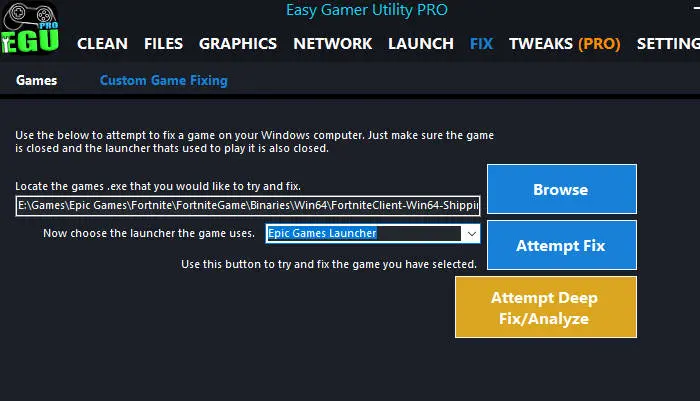
12. Game-Specific Optimization in Easy Gamer Utility
Easy Gamer Utility allows you to apply targeted fixes for individual games like ARC Raiders.
Select the game executable and use the built-in Fix option to resolve potential crash or cache issues automatically.
Download Easy Gamer Utility here
Common Search Terms Related to ARC Raiders Lag
Players often search for:
- ARC Raiders lag fix PC
- ARC Raiders connection to server lost
- ARC Raiders rubberbanding problem
- How to fix ARC Raiders high ping
- ARC Raiders keeps disconnecting
- ARC Raiders packet loss
- ARC Raiders stuttering online
- ARC Raiders server connection error
Final Tips for a Stable ARC Raiders Connection
- Avoid peak gaming hours (weekend evenings) when servers are busiest.
- Restart ARC Raiders if it gets stuck on “connecting to online services.”
- Use the in-game network performance graph to monitor ping and packet loss.
- If issues persist after all fixes, contact ARC Raiders Support for direct help — some account-specific issues require backend resets.
With the right setup and a few quick adjustments, ARC Raiders should run smoothly with minimal lag, packet loss, or disconnects.