
Fix Crimson Desert Low FPS & Stuttering on PC
If Crimson Desert is running with low FPS, stuttering, or just feels off even though your PC should handle it, you’re definitely not the only one. It’s one of those issues where the game runs, but it doesn’t feel smooth at all — FPS drops, random stutters, and that “why is my FPS low?” feeling even on a decent setup.
You might notice:
- FPS suddenly dropping in fights or busy areas
- Stuttering when moving around the map
- FPS is low even on a good PC
- GPU or CPU usage acting weird
- Performance getting worse over time
This kind of low FPS in games issue happens across loads of titles (Warzone, Apex, etc.), and Crimson Desert is no different. The good news is there are quite a few ways to improve it.
1. Lower Graphics Settings (Start Here)
If your FPS is low, your settings are the first place to look.
Even high-end PCs can struggle with everything maxed out, especially in new games.
Lower these first:
- Shadows (big FPS killer)
- Effects
- View Distance
- Post Processing
- Anti-Aliasing
You don’t need to drop everything to low — just tweaking a few of these can give a solid FPS boost.
2. Update Your Graphics Drivers
If your drivers are outdated, performance can tank fast.
A lot of low fps issues (even like warzone low fps or apex legends low fps) come down to drivers not being optimised.
Update here:
- NVIDIA → GeForce Experience
- AMD → Adrenalin Software
- Intel → Driver Assistant
Restart your PC after updating.
3. Use Easy Gamer Utility to Boost FPS
Instead of messing with loads of settings manually, you can use Easy Gamer Utility (EGU) to quickly improve performance. Also Easy Gamer Utility is made by me as I want to help gamers out.
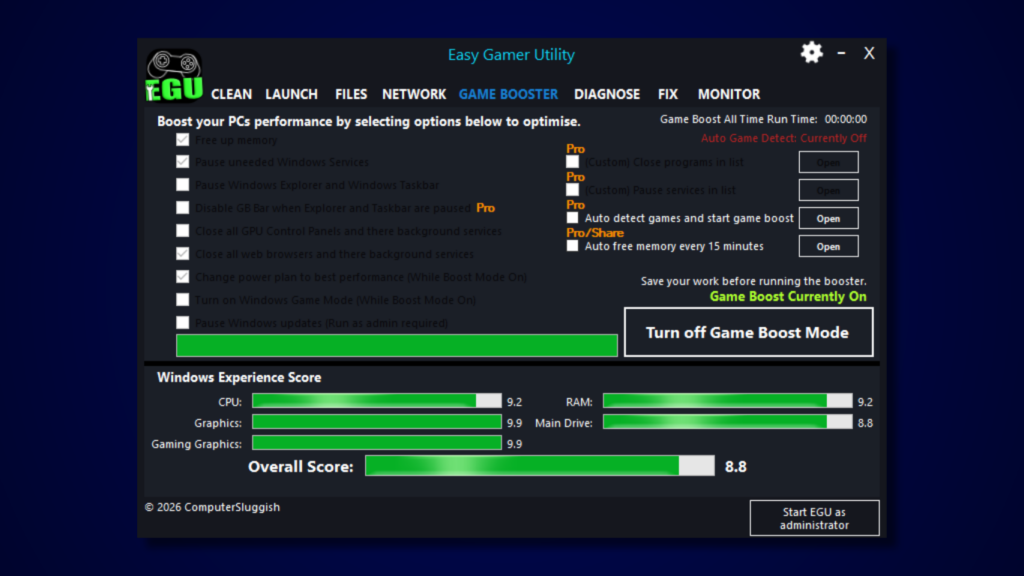
EGU can:
- Free up system resources
- Disable unnecessary background services
- Optimise Windows for gaming
- Improve overall system performance
Download Easy Gamer Utility here
If you’ve ever had low fps on a good pc, this can help fix hidden background issues.
4. Clear Graphics Cache Using EGU (Important for Stutter)
One big cause of stuttering and fps low issues is corrupted or bloated cache files.
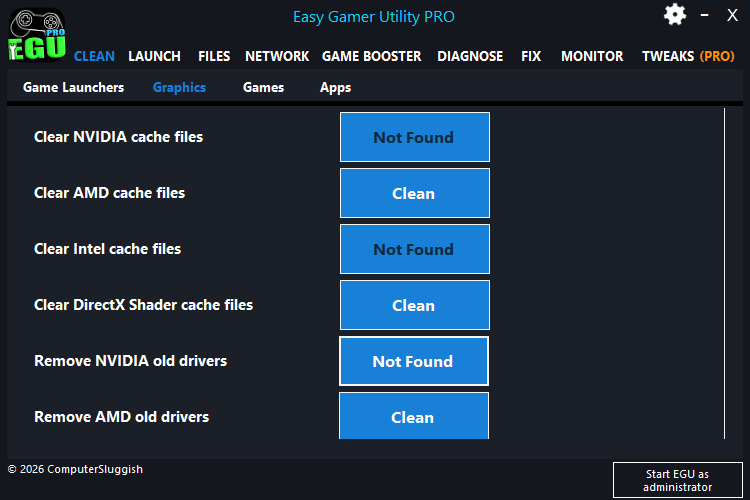
Using EGU a tool made by me, you can:
- Clear DirectX shader cache
- Clear NVIDIA / AMD / Intel cache
Download Easy Gamer Utility for FREE here
This helps fix things like:
- Random stutters
- FPS drops over time
- Inconsistent performance
It basically forces the game to rebuild clean cache files.
5. Close Background Apps
If your FPS is low, check what’s running in the background.
Apps can quietly eat up CPU, RAM, and GPU:
Close things like:
- Browsers (especially with lots of tabs)
- Discord (or disable overlay)
- Recording / streaming software
- Other launchers
This is a big one for people with good PC low FPS problems.
6. Set Windows to High Performance Mode
Windows power settings can actually limit your FPS.
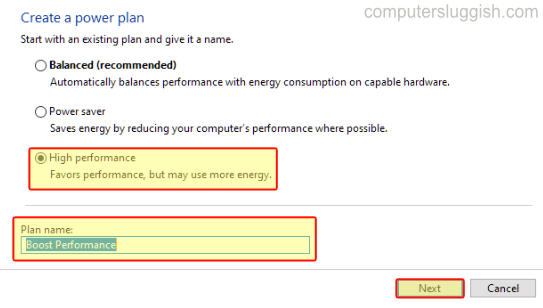
To fix:
- Open Power Options
- Select High Performance
If you’re on a laptop, make sure you’re plugged in — otherwise performance gets limited hard.
7. Disable Overlays
Overlays can cause:
- FPS drops
- Stuttering
- Input lag
Turn off:
- Steam Overlay
- Discord Overlay
- NVIDIA / AMD overlays
This can help stabilise FPS a lot.
8. Use Fullscreen (Not Borderless)
Borderless windowed mode can sometimes lower FPS.
Switch to exclusive fullscreen for better performance and smoother gameplay.
9. Check CPU & GPU Temps (Very Overlooked)
If your temps are too high, your system will throttle performance.
This can cause:
- Low FPS
- Sudden drops
- Inconsistent performance
Make sure:
- Fans are working properly
- No dust build-up
- Airflow is good
Overheating = instant performance loss.
10. Reduce Resolution or Use Upscaling
If you’re still getting low FPS, lowering resolution can help a lot.
Try:
- Dropping from 1440p → 1080p
- Using in-game upscaling (if available)
This takes pressure off your GPU and can boost FPS quickly.
11. Install Windows Updates
Outdated Windows versions can affect performance.

To update:
- Go to Settings → Windows Update
- Install all available updates
This can help fix general low fps in games issues.
12. Make Sure the Game Is Using Your Main GPU
If the game is using integrated graphics instead of your main GPU, your FPS will be extremely low.
Check:
- NVIDIA Control Panel → Set preferred GPU
- AMD Settings → Set High Performance GPU
This is a common reason for fps very low problems.
Watch: How To Fix Crimson Desert Issues on PC
If you’re still having issues with Crimson Desert, the video below walks you through the most effective fixes step-by-step. It covers common problems like the game not launching, crashing on startup, and other errors, along with the exact settings and tools you can use to get it running properly. Follow along with the video and you should be able to fix most issues without having to try loads of different methods yourself 👍
Final Thoughts
Low FPS in Crimson Desert can feel random, especially when your system should be handling it fine. Most of the time though, it comes down to settings, drivers, background apps, or cache causing problems.
The biggest improvements usually come from lowering heavy settings, updating drivers, clearing graphics cache, and making sure your system isn’t being held back by background processes.
If your FPS is low, just work through the steps above and you should start to see smoother performance and fewer stutters pretty quickly.