
How to Fix Resident Evil Requiem Black Screen Issues
If you’re launching Resident Evil Requiem only to be met with a black screen, frozen display, or audio playing with no picture, you’re not alone. Black screen problems are one of the most common launch issues PC players run into with modern games, especially on Windows 10 and Windows 11 systems.
Sometimes the game loads but shows nothing. Other times it stays black after the logo screen or freezes when entering gameplay. The good news is that this problem is usually caused by configuration or system conflicts rather than faulty hardware.
This guide walks through proven fixes that help resolve Resident Evil Requiem black screen issues and improve overall game stability on PC.
Why Resident Evil Requiem Shows a Black Screen on PC
A black screen normally happens when the game launches successfully but fails to properly initialise graphics or system resources.
Common causes include:
- Graphics driver conflicts
- Incorrect display settings or resolution mismatch
- Background programs interfering with the game
- Overlay software conflicts
- Shader cache problems
- Windows performance services interrupting rendering
These issues affect both Windows 10 and Windows 11 users and can occur even on high-end gaming PCs.
1. Restart Your PC First (Often Fixes It Immediately)
Before changing settings, restart your computer completely.
Modern versions of Windows keep services running in the background even after closing applications. A restart clears temporary memory conflicts that often cause black screens during game launch.
After restarting, launch the game again before trying other fixes.
2. Update Graphics Drivers
Outdated or partially installed GPU drivers are one of the biggest causes of black screen problems.
NVIDIA
Open GeForce Experience and install the latest Game Ready Driver.
AMD
Open AMD Adrenalin Software and check for updates.
After installing drivers:
- Restart your PC
- Launch Resident Evil Requiem again
Driver updates frequently include fixes for launch and rendering issues in newer games.
3. Launch the Game in Windowed Mode
A resolution mismatch between Windows and the game can result in a permanent black screen.
Try forcing windowed mode:
Steam users:
- Right-click the game in Library
- Select Properties
- Add this to Launch Options:
-windowed
This allows the game to load using safe display settings. Once it works, you can switch back to fullscreen inside the game settings.
4. Disable Overlays (Very Common Fix)
Overlays inject themselves into games and can prevent graphics from displaying correctly.
Disable:
- Steam Overlay
- Discord Overlay
- NVIDIA Overlay
- Xbox Game Bar
Many players find the black screen disappears immediately after turning overlays off.
5. Close Background Applications
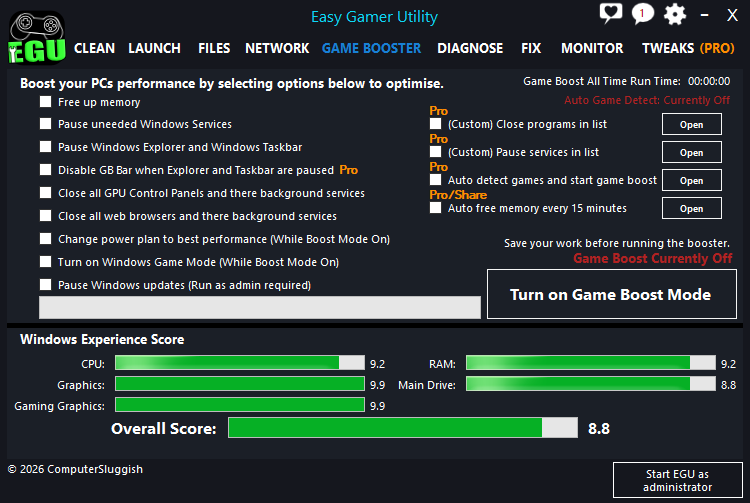
Black screen issues are often caused by background programs competing for GPU or CPU resources during launch.
Common offenders include:
- Hardware monitoring tools
- RGB software
- Screen recorders
- Web browsers using hardware acceleration
Instead of manually closing everything, many players use Easy Gamer Utility to prepare Windows for gaming sessions. It temporarily stops unnecessary background processes and frees system resources, helping games launch cleanly without display conflicts.
You can download Easy Gamer Utility here
This is especially helpful if Resident Evil Requiem shows a black screen but audio still plays in the background.
6. Verify Game Files

Corrupted or incomplete files can prevent textures or shaders from loading.
Steam:
- Right-click the game
- Select Properties
- Installed Files
- Click Verify integrity of game files
Steam will automatically replace any damaged files.
7. Clear Shader Cache
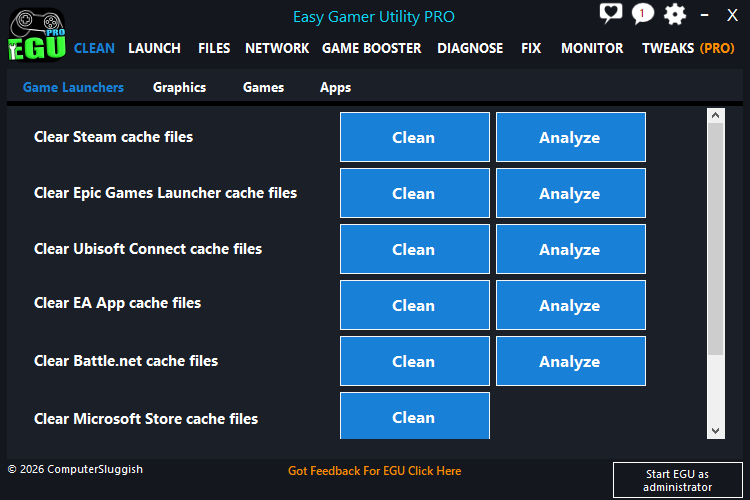
Broken shader cache files often cause black screens after updates.
NVIDIA:
- Open NVIDIA Control Panel
- Manage 3D Settings
- Set Shader Cache Size to Default
- Restart PC
AMD:
Clear shader cache from Adrenalin settings.
This forces the game to rebuild shaders correctly.
8. Run the Game as Administrator

Permission conflicts can stop the game from accessing graphics components properly.
- Navigate to the game installation folder
- Right-click the game executable
- Select Run as Administrator
You can enable this permanently under Compatibility settings.
9. Change Display Settings in Windows
Incorrect refresh rate or display configuration can cause launch problems.
On Windows 10 or Windows 11:
- Right-click Desktop
- Display Settings
- Advanced Display Settings
- Set refresh rate to your monitor’s native value
If you use multiple monitors, try launching the game with only one enabled temporarily.
10. Optimise Windows for Gaming Stability
Windows runs dozens of background services that can interfere with games during startup, particularly on systems used for work, browsing, or streaming.
When too many processes compete for GPU resources, games may load into a black screen instead of rendering properly.
Easy Gamer Utility helps reduce these conflicts by:
- Pausing unnecessary services safely
- Freeing RAM before launch
- Reducing CPU spikes
- Creating a cleaner gaming environment
Many users notice improved launch reliability and fewer graphical issues after optimising their system before starting games.
11. Update Windows Completely

Make sure your system is fully updated.
Go to:
Settings → Windows Update → Check for Updates
Install all available updates, including optional driver updates.
Both Windows 10 and Windows 11 receive graphics and compatibility patches that directly affect newer games.
Final Thoughts
Resident Evil Requiem black screen issues on PC are usually caused by driver conflicts, overlays, or Windows background processes rather than the game itself.
Most players fix the problem by:
- Updating graphics drivers
- Disabling overlays
- Verifying files
- Optimising background processes
- Adjusting display settings
If you regularly experience black screens or launch problems across multiple games, preparing your system before gaming can make a noticeable difference. Tools like Easy Gamer Utility help streamline Windows for gaming sessions and reduce the conflicts that commonly cause startup issues.