
Why Does My Website Say Not Secure But Certificate Is Valid?
If your website has an SSL certificate installed but still shows “Not Secure” in Chrome or other browsers, it can be confusing and worrying. Many website owners expect the padlock icon to appear once the SSL certificate is active, but sometimes browsers still show a warning even when the certificate is valid.
This usually means there is a technical issue somewhere on the website. The SSL certificate itself may be working correctly, but something else is preventing the browser from fully trusting the connection. This problem is very common and happens to alot of websites, especially after installing SSL for the first time or moving from HTTP to HTTPS.
The most common cause is mixed content, but there are also other possible reasons such as incorrect redirects, expired resources, or insecure internal links. Fixing these problems is important because users may leave your website if they see a security warning.
What Does “Not Secure” Mean in Chrome or Browsers
When Chrome says a website is “Not Secure”, it means the browser has detected something unsafe or unencrypted. Even if your SSL certificate is valid, the browser checks every resource on the page. If anything loads insecurely, the warning may appear.
This could include images, scripts, stylesheets, or internal links that still use HTTP instead of HTTPS. The main page may be secure, but if even one element loads insecurely, Chrome may show the warning.
This is why sometimes your certificate is valid but the website still appears insecure.
Most Common Cause: Mixed Content (Very Common Problem)
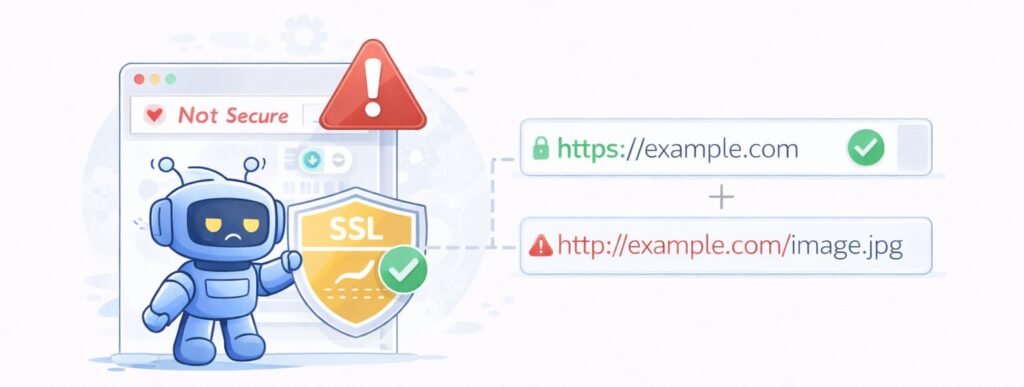
Mixed content is the number one reason why a website says not secure but certificate is valid. Mixed content happens when your website loads some files over HTTPS and others over HTTP.
For example, your page might load securely using:
https://example.com
but an image or script loads using:
http://example.com/image.jpg
This creates a security risk because part of the page is not encrypted. Browsers detect this and show the Not Secure warning.
This issue happens alot when websites switch from HTTP to HTTPS but old links are still present.
Mixed content can affect:
- Images
- CSS files
- JavaScript files
- Fonts
- Internal links
Even one insecure file can cause the warning.
How to Check Mixed Content on Your Website
You can check mixed content using your browser developer tools.
In Chrome:
Right click your page → Click Inspect → Click Console tab
If mixed content exists, you will see warnings like:
Mixed Content: The page was loaded over HTTPS, but requested an insecure resource.
This tells you exactly which files are causing the problem.
Tools such as:
- Google Search Console
- Screaming Frog SEO Spider
- Ahrefs Site Audit
- Semrush Site Audit
- CrawlRhino SEO Crawler
can also scan your website and identify insecure resources.
These tools make it easier to find problems that would otherwise be hard to see manualy.
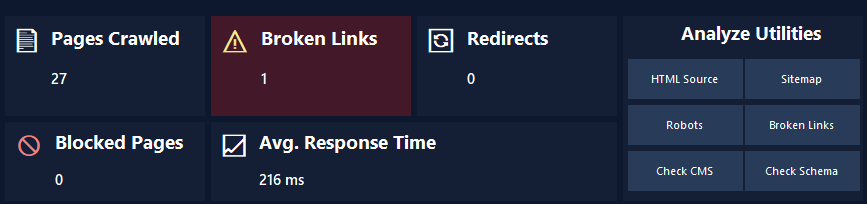
You can download CrawlRhino SEO Crawler here:
https://crawlrhino.com/crawlrhino-seo-crawler/
Incorrect HTTP to HTTPS Redirects Can Cause Not Secure Warning
Another common reason is incorrect redirects. When SSL is installed, your website should automatically redirect visitors from HTTP to HTTPS.
For example:
http://example.com → https://example.com
If this redirect is not configured properly, users may access insecure versions of your site.
Sometimes both HTTP and HTTPS versions remain active, which can confuse browsers and search engines.
Setting up proper redirects ensures all visitors use the secure version.
Internal Links Still Using HTTP Can Cause Problems
Even if your website loads securely, internal links may still use HTTP instead of HTTPS. This can cause security warnings.
For example:
http://example.com/page
should be changed to:
https://example.com/page
Old internal links often remain after SSL installation.
Updating internal links helps ensure your website is fully secure.
SEO crawler tools can scan your website and find internal links still using HTTP.
SSL Certificate Installed Incorrectly
Sometimes the SSL certificate is installed but not configured properly. This can cause browsers to show security warnings.
Common SSL configuration issues include:
- Missing intermediate certificate
- Incorrect domain configuration
- SSL not applied to all subdomains
These problems prevent browsers from fully trusting the certificate.
Checking your SSL installation helps ensure everything works correctly.
Website Resources Still Cached in HTTP
Sometimes browsers or servers cache old HTTP versions of files. Even after fixing SSL issues, cached files may still load insecurely.
Clearing your browser cache and website cache can help fix this problem.
This is often overlooked but can cause confusion.
Why This Problem Is Bad for SEO and Users
If your website shows Not Secure, visitors may leave immediately. This increases bounce rate and reduces trust.
Google also prefers secure websites. HTTPS is a ranking factor, so insecure pages may rank lower.
Search engines want users to feel safe when browsing.
Fixing SSL and security issues helps improve trust, rankings, and crawlability.
How SEO Crawlers Help Find Security and HTTPS Problems
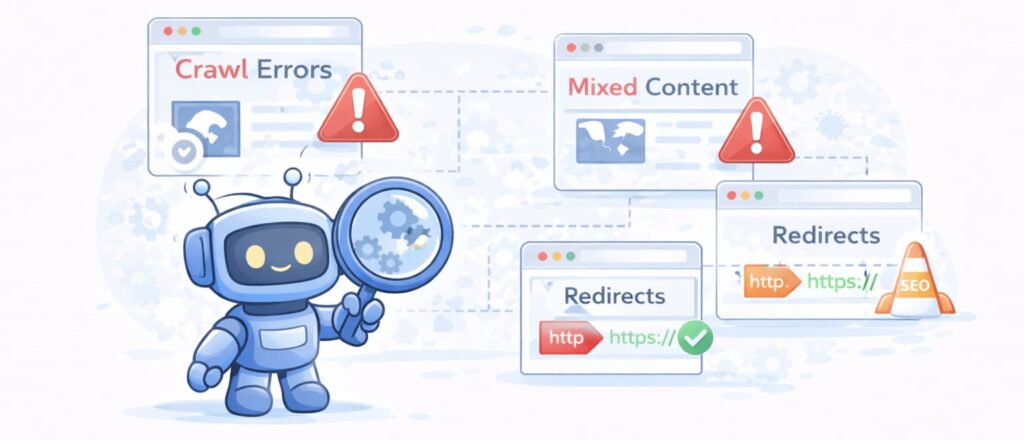
SEO crawler tools can scan your entire website and find insecure resources. These tools help identify problems such as:
- Mixed content
- Broken HTTPS links
- Incorrect redirects
- Crawl errors
Tools like Google Search Console, Screaming Frog, Ahrefs, Semrush, and CrawlRhino SEO Crawler help detect these problems quickly.
Without scanning tools, these issues can be difficult to find, especialy on larger websites.
Fixing these problems helps ensure your website is fully secure and accessible.
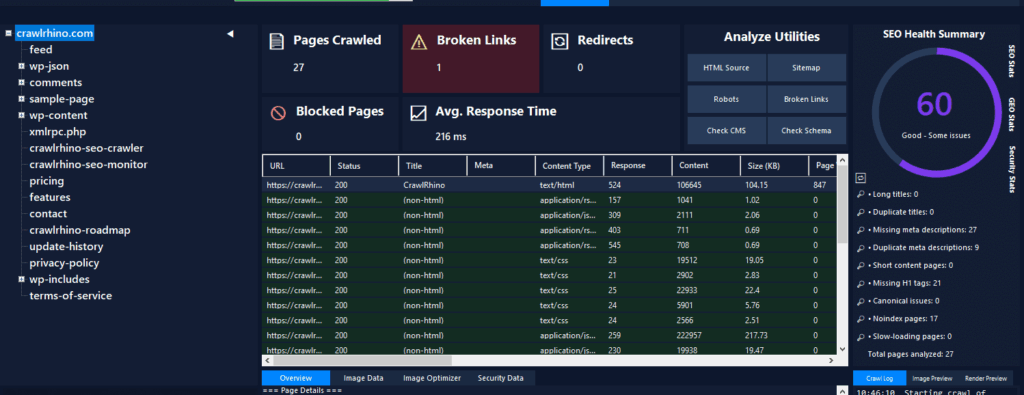
You can download CrawlRhino SEO Crawler here:
https://crawlrhino.com/crawlrhino-seo-crawler/
How to Fix Website Showing Not Secure But Certificate Valid
Here are the main steps to fix the issue:
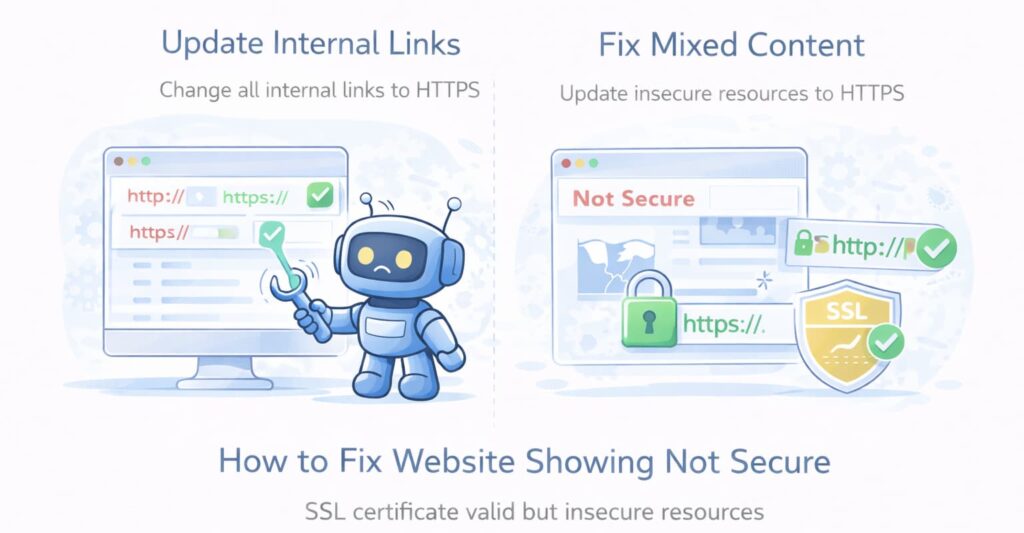
Update all internal links to HTTPS
Fix mixed content issues
Set up proper redirects from HTTP to HTTPS
Clear cache and reload website
Check SSL certificate installation
Scan website for insecure resources
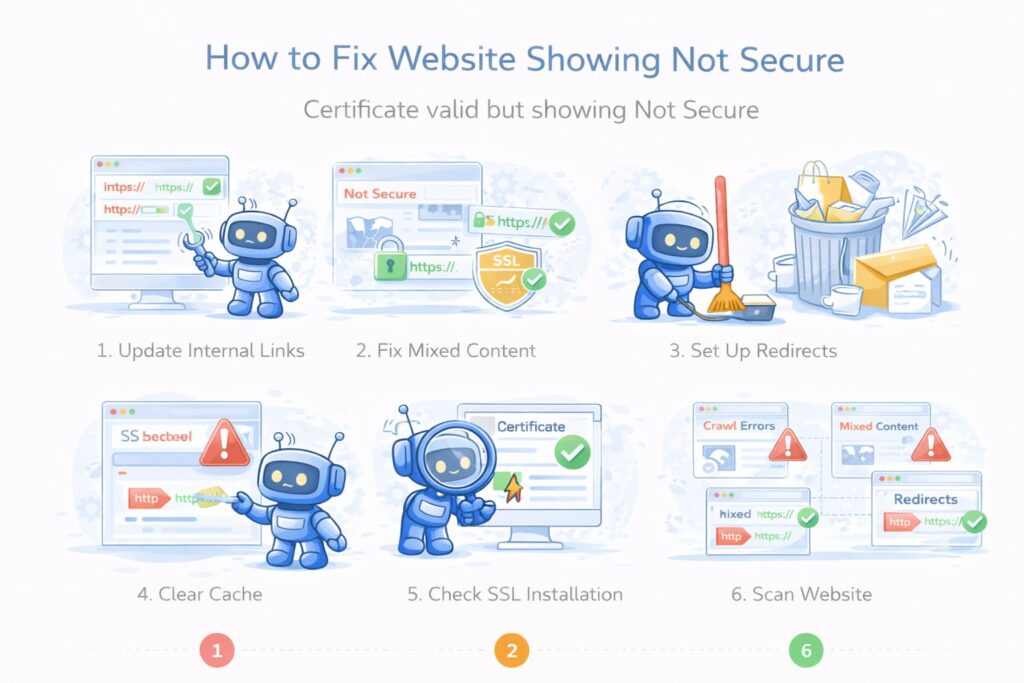
These steps fix most security warnings.
This Problem Is Very Common and Fixable
Many website owners experience this issue after installing SSL. It does not mean your certificate is broken. It usually means something else needs to be updated.
Once mixed content and insecure links are fixed, the Not Secure warning disappears.
This helps improve user trust and search engine visibility.
Final Thoughts
If your website says Not Secure but certificate is valid, the problem is usually mixed content, incorrect redirects, or insecure internal resources. The SSL certificate may be working, but other parts of the website still load insecurely.
Fixing these problems ensures your website is fully secure and trusted by browsers and search engines.
Tools like Google Search Console, Screaming Frog, Ahrefs, Semrush, and CrawlRhino SEO Crawler can help find insecure resources and technical issues.
Once fixed, your website will show as secure and users will trust it more.