
Resident Evil Requiem Crashing & Freezing On Windows
PC gaming should be smooth, immersive, and reliable — but nothing breaks the experience faster than a game constantly crashing to desktop. If Resident Evil Requiem keeps crashing on PC, you’re not alone. Many players experience startup crashes, freezing during gameplay, or sudden crashes without error messages.
The good news is that most crashing issues are caused by common PC configuration problems — and they can usually be fixed without reinstalling Windows or upgrading hardware.
In this guide, we’ll walk through every proven fix to stop Resident Evil Requiem crashing and improve overall game stability.
Why Does Resident Evil Requiem Keep Crashing on PC?
Before fixing the problem, it helps to understand what causes it.
Most PC game crashes happen due to one or more of these issues:
- Outdated or corrupted graphics drivers
- Background apps using too many system resources
- Shader or cache conflicts
- Incorrect graphics settings
- Windows optimisation problems
- Overlays and monitoring software conflicts
- Memory or CPU spikes during gameplay
Modern games push hardware harder than ever, meaning even small system inefficiencies can cause instability.
1. Check Your PC Meets Minimum Requirements
It sounds obvious, but crashes often happen when systems sit right on the minimum requirements.
Even if the game launches, insufficient VRAM or RAM can cause crashes during:
- Cutscenes
- Area transitions
- Boss fights
- High particle effects
If performance feels inconsistent before crashes, your system may be running out of resources.
2. Update Your Graphics Drivers (Very Important)
Outdated GPU drivers are one of the biggest reasons a game keeps crashing.
NVIDIA users:
Open GeForce Experience → Drivers → Check for Updates
AMD users:
Open AMD Adrenalin Software → Updates
After updating:
Restart your PC
Launch the game again
Driver updates often include specific stability fixes for new releases.
3. Verify Game Files

Corrupted game files commonly cause startup crashes.
Steam:
- Right-click the game in Library
- Select Properties
- Go to Installed Files
- Click Verify integrity of game files
This replaces damaged or missing files automatically.
4. Close Background Apps That Cause Game Crashes
Many players don’t realise how much background software affects gaming stability.
Common crash-causing programs include:
- RGB control software
- Browser tabs using hardware acceleration
- Recording software
- Overlay tools
- System cleaners running scans
When CPU or RAM spikes occur mid-game, crashes become far more likely.
A quick way to stabilise your system is using a dedicated gaming optimiser like Easy Gamer Utility, which safely shuts down unnecessary background processes before launching your game. This frees system resources and helps prevent random crashes caused by hidden apps.
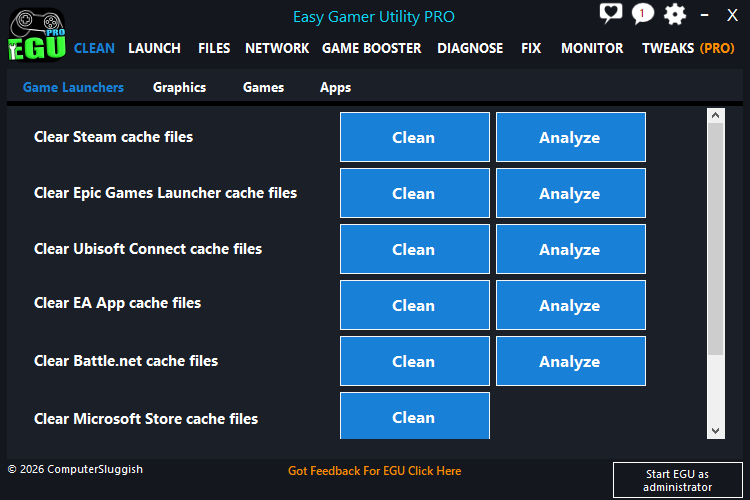
Download Easy Gamer Utility here:
https://computersluggish.com/downloads/easy-gamer-utility/
Many players use it specifically to fix situations where a PC game keeps crashing without error messages.
5. Disable Overlays (Huge Crash Trigger)
Overlays hook directly into games and frequently cause instability.
Try disabling:
- Steam Overlay
- Discord Overlay
- NVIDIA Overlay
- Xbox Game Bar
Disable Steam Overlay:
Steam → Settings → In-Game → Uncheck Enable Steam Overlay
Restart the game afterward.
6. Lower Graphics Settings Temporarily
Even powerful PCs can crash if settings spike usage suddenly.
Start with:
- Texture Quality → Medium
- Ray Tracing → Off
- Shadows → Medium
- Motion Blur → Off
If crashes stop, gradually increase settings until stability drops again.
7. Run the Game as Administrator

Permission conflicts can cause crashes during saves or loading.
- Navigate to game install folder
- Right-click game executable
- Select Run as Administrator
You can also enable this permanently in Compatibility settings.
8. Optimise Windows for Gaming Stability
Windows runs many background services not needed during gaming.
Instead of manually disabling services (which can be risky), tools like Easy Gamer Utility automate safe performance optimisation by:
- Pausing unnecessary services
- Freeing RAM instantly
- Reducing CPU background usage
- Improving FPS consistency
- Preventing resource spikes that lead to crashes
This is especially helpful if Resident Evil Requiem crashes after 10–20 minutes of gameplay — a common sign of system resource exhaustion.
9. Disable Overclocking (If Enabled)
Overclocks that appear stable in benchmarks can still crash games.
Reset:
- GPU overclock
- CPU overclock
- RAM XMP (temporarily for testing)
If crashes stop, stability tuning is needed.
10. Update Windows

Game engines rely on modern Windows components.
Go to:
Settings → Windows Update → Check for Updates
Install all pending updates, especially:
- .NET updates
- Visual C++ updates
- Security patches
Bonus Fix: Restart Your PC Before Gaming
Simple but effective.
A fresh reboot clears memory leaks and background tasks accumulated during daily use.
For best results:
- Restart PC
- Launch Easy Gamer Utility
- Activate Game Mode
- Start Resident Evil Requiem
Why Gaming Optimisation Tools Help Prevent Crashes
Many players assume crashes are always game bugs — but often the real cause is Windows running dozens of background processes competing for resources.

A lightweight optimiser like Easy Gamer Utility helps by preparing your PC specifically for gaming sessions, reducing conflicts that cause:
- Random crashes
- FPS drops
- Stuttering
- Freezing during loading screens
Because it focuses on stability rather than aggressive tweaks, it’s safe for everyday use.
Final Thoughts: Fixing Resident Evil Requiem PC Crashes
If Resident Evil Requiem keeps crashing on your PC, the issue is usually solvable without drastic measures.
Start with:
Driver updates
File verification
Overlay removal
Background process optimisation
Most players see major improvements after reducing system load and stabilising Windows performance.
If you want a quick, beginner-friendly way to optimise your system before gaming, you can try Easy Gamer Utility here: