
How To Fix FiveM Connection Error Fix on Windows 10 & Windows 11
If you’re trying to join a server but keep seeing a FiveM connection error, failed handshake message, or endless connecting screen, you’re not alone. Connection problems are one of the most common issues FiveM players experience, especially after updates or network changes.
FiveM, powered by Cfx.re, allows Grand Theft Auto V players to join customised multiplayer servers, but because it relies on both your internet connection and Windows networking services, even small configuration problems can prevent successful connections.
This guide explains how to fix FiveM connection errors on Windows 10 and Windows 11 using reliable, proven solutions.
Why FiveM Shows Connection Errors
A connection error usually means your PC successfully launches FiveM but fails to communicate properly with the server.
Common causes include:
- DNS or network configuration issues
- Firewall or antivirus blocking FiveM
- Background applications using bandwidth
- Corrupted FiveM cache data
- VPN or proxy conflicts
- Windows network services not responding correctly
- High CPU usage interrupting server handshake
Sometimes the issue is local to your PC even when servers are online and working for other players.
Restart Your Router and PC
Start with the simplest fix.
- Restart your PC
- Turn off your router for 60 seconds
- Turn it back on and wait for full connection
This refreshes your IP address and clears temporary networking problems that often cause connection failures.
Check FiveM Server Status
Before troubleshooting further, confirm the issue is not server-side.
Try joining a different server. If other servers work normally, the original server may be offline or full.
Clear FiveM Cache Files
Corrupted cache files frequently cause connection errors and handshake failures.
- Press Windows Key + R
- Type:
%localappdata%
- Open the FiveM folder
- Go to FiveM Application Data → data
- Delete:
- cache
- server-cache
- server-cache-priv
Restart FiveM and reconnect.
Disable VPNs or Proxy Connections

FiveM servers often block VPN traffic to prevent abuse.
If you are using:
- VPN software
- Proxy tools
- Privacy networking apps
Disable them temporarily and try connecting again.
Allow FiveM Through Windows Firewall

Windows Firewall may silently block FiveM communication.
- Open Windows Security
- Go to Firewall & Network Protection
- Allow an app through firewall
- Ensure FiveM and GTA V are allowed on both Private and Public networks
After applying changes, restart FiveM.
Close Background Applications Using Network or CPU Resources
Connection errors are not always internet problems. If your system is heavily loaded while joining a server, FiveM can fail during the connection handshake process.
Programs that commonly interfere include:
- Browsers streaming video
- Cloud sync software
- Game launchers updating in the background
- Recording or streaming tools
Many players don’t realise Windows continues running dozens of background tasks that compete for system and network resources.
Using Easy Gamer Utility before launching FiveM helps reduce these conflicts. The software includes multiple optimisation options that temporarily stop unnecessary background services, free RAM, and stabilise CPU usage so games and online mods can connect more reliably.
When system load is reduced, FiveM often connects successfully without further changes.
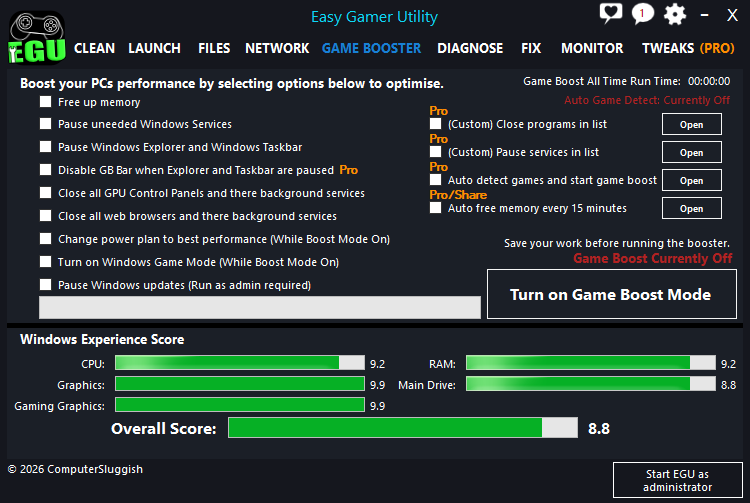
Easy Gamer Utility is available here:
https://computersluggish.com/downloads/easy-gamer-utility/
Flush DNS Cache
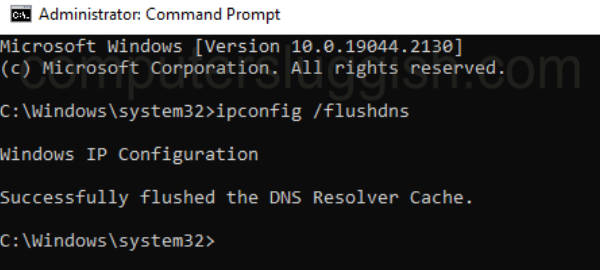
Network cache problems can prevent server connections.
Open Command Prompt as Administrator and run:
ipconfig /flushdns
Then restart your PC and try again.
This refreshes Windows network resolution settings.
Change DNS Servers
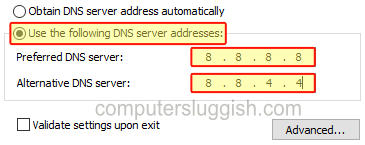
Switching DNS servers can improve connection reliability.
- Open Network Settings
- Change adapter options
- Right-click your connection → Properties
- Select Internet Protocol Version 4 (IPv4)
Use:
Preferred DNS: 8.8.8.8
Alternate DNS: 8.8.4.4
Save and reconnect.
Update Network and Graphics Drivers
Outdated drivers can affect online game stability.
Update:
- Network adapter drivers
- Graphics drivers
Restart your PC afterward.
Update Windows Completely

Both Windows 10 and Windows 11 regularly receive networking updates that affect online gaming.
Go to Settings → Windows Update → Check for Updates and install everything available.
Restart once updates finish.
Why System Performance Can Affect Connection Errors
Many players assume connection errors are purely internet-related, but FiveM relies on real-time communication between your PC, GTA V, and the server.
If Windows is overloaded with background activity, connection timeouts can occur even on fast internet connections. High CPU usage during server joining is a surprisingly common cause of failed connections.
Preparing your system before gaming helps ensure FiveM has the resources it needs to establish stable connections. Easy Gamer Utility simplifies this process by offering gaming-focused optimisation features designed to reduce background interference without permanently changing Windows settings.
Final Thoughts
FiveM connection errors on PC are usually caused by cache corruption, firewall blocks, or system resource conflicts rather than server outages.
Most players resolve the issue by:
- Clearing FiveM cache files
- Restarting network devices
- Disabling VPNs
- Updating drivers
- Reducing background processes before launching
If connection problems happen frequently across different servers, optimising your system before starting FiveM can significantly improve reliability and reduce failed connections.
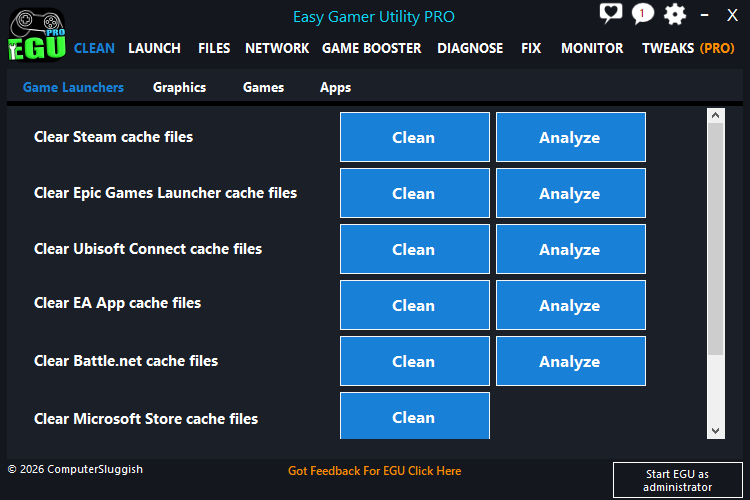
You can download Easy Gamer Utility here:
https://computersluggish.com/downloads/easy-gamer-utility/