
How To Fix FiveM Lag Fix and FPS Drop Fix on Windows
If FiveM feels laggy, stutters while driving, or your FPS keeps dropping during gameplay, you’re not alone. Performance problems are one of the most common complaints among FiveM players, even on PCs that run GTA V perfectly in single-player mode.
Because FiveM runs customised multiplayer servers with scripts, mods, and additional assets, it places extra strain on your system compared to standard GTA V. Small performance issues in Windows can quickly turn into noticeable lag, frame drops, or micro-stuttering.
This guide explains how to fix FiveM lag and FPS drops on Windows 10 and Windows 11 using practical, proven solutions.
Why FiveM Has Lag or FPS Drops
Unlike normal games, FiveM performance depends on several factors at once:
- Server scripts and mods
- CPU performance
- Background Windows processes
- Disk speed and cached files
- Graphics configuration
- Network stability
Even powerful GPUs can struggle if the CPU or Windows background services are overloaded.
Common symptoms include:
- FPS dropping while driving fast
- Stuttering in populated areas
- Random lag spikes
- Delayed input or rubberbanding
- Smooth gameplay that suddenly becomes choppy
Restart Your PC Before Playing
A restart clears memory usage and background services that build up over time.
If your PC has been running browsers, updates, or other software all day, performance will usually be worse in FiveM until the system is refreshed.
Restart first, then test performance again.
Optimise Background Processes (Biggest Performance Gain)
One of the main reasons FiveM suffers from lag is Windows running too many background tasks while you play.
Programs silently using resources include:
- Browsers running in the background
- Launchers updating games
- RGB or hardware utilities
- Cloud sync applications
- Auto-updaters
These compete with FiveM for CPU time, causing FPS drops and stutter.
Many players use Easy Gamer Utility before launching FiveM to prepare their system for gaming. It includes several optimisation options designed to temporarily stop unnecessary background processes, free RAM, and prioritise gaming performance without permanently disabling anything in Windows.
Running these optimisations before opening FiveM often results in smoother gameplay and more stable FPS, especially on mid-range systems.
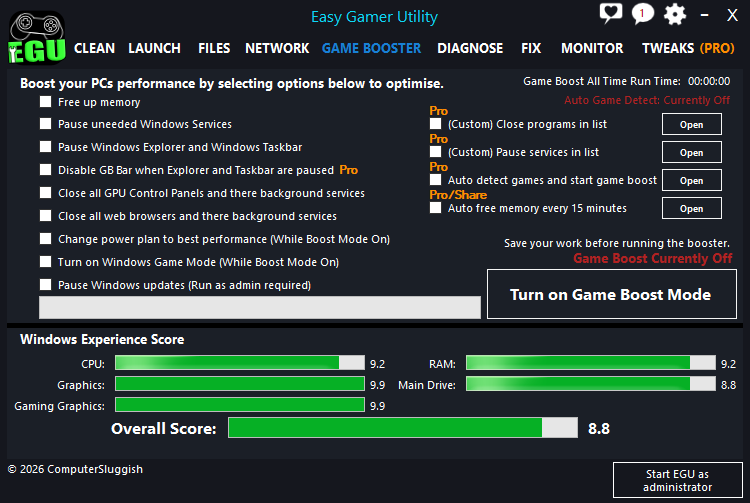
Easy Gamer Utility can be downloaded here:
https://computersluggish.com/downloads/easy-gamer-utility/
Set FiveM to High Performance Graphics Mode
Windows sometimes assigns games to power-saving graphics settings.
On Windows 10 or Windows 11:
- Open Settings
- Go to System → Display → Graphics
- Add FiveM.exe using Browse
- Select Options
- Choose High Performance
Restart FiveM afterward.
This ensures your dedicated GPU is used correctly.
Lower the Settings That Affect FPS Most
Some graphics options impact performance far more than others.
Start by lowering:
- Extended Distance Scaling
- Shadow Quality
- Reflection Quality
- Grass Quality
- Population Density
These settings heavily affect CPU usage, which is usually the main bottleneck in FiveM.
Clean Temporary Files and System Junk
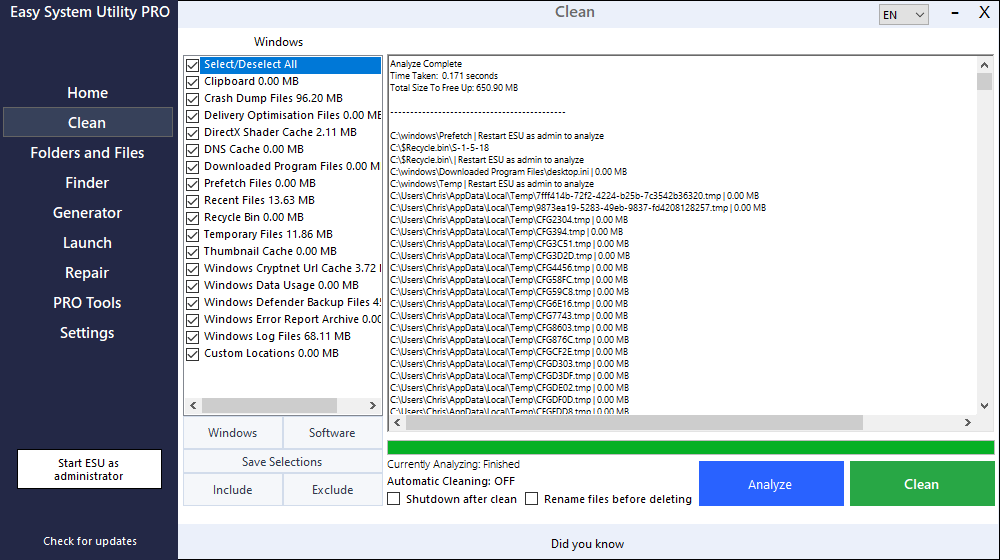
Over time, Windows accumulates temporary files, leftover updates, and cached data that can slow disk access and cause performance instability.
Cleaning unnecessary files using Easy System Utility helps remove junk data safely and can improve overall responsiveness, especially if your system drive is becoming cluttered.
A cleaner system allows games like FiveM to load assets faster and reduces stuttering caused by disk activity.
Easy System Utility is available here:
https://computersluggish.com/downloads/easy-system-utility/
Disable Overlays

Overlays constantly run in the background and can reduce FPS.
Disable:
- Discord Overlay
- Steam Overlay
- NVIDIA Overlay
- Xbox Game Bar
Many players see immediate FPS improvements after disabling overlays.
Update Graphics Drivers
Driver updates often include performance improvements.
Update using:
- NVIDIA GeForce Experience
- AMD Adrenalin Software
Restart your PC after installing updates.
Enable Windows Game Mode
Game Mode helps prioritise system resources for games.
Go to:
Settings → Gaming → Game Mode → Turn On
This won’t fix everything alone but helps when combined with other optimisations.
Check Server Performance
Sometimes lag is server-related rather than PC-related.
Signs of server lag include:
- Everyone freezing at the same time
- Rubberbanding affecting all players
- High ping warnings
Try joining another server to compare performance.
Install FiveM on an SSD (If Possible)
If FiveM is installed on a slow hard drive, asset streaming can cause stuttering while driving or entering new areas.
Moving GTA V and FiveM to an SSD significantly improves loading and reduces FPS drops caused by texture streaming.
Why System Optimisation Matters for FiveM
FiveM relies heavily on CPU scheduling and disk performance due to server scripts and modded assets. When Windows runs unnecessary services in the background, frame pacing becomes unstable, causing lag spikes even when average FPS looks high.
Preparing your PC before gaming sessions and keeping Windows clean helps ensure your hardware is fully focused on gameplay instead of background activity.
Using Easy Gamer Utility for performance optimisation alongside Easy System Utility for regular system cleaning helps maintain consistent performance over time rather than fixing problems temporarily.
Final Thoughts
If FiveM has lag or FPS drops on your PC, the issue is usually caused by background processes, Windows clutter, or incorrect performance settings rather than weak hardware.
The fixes that work most often are:
- Optimising background processes before launching
- Setting FiveM to High Performance graphics mode
- Lowering CPU-heavy graphics settings
- Cleaning temporary system files
- Updating drivers
- Disabling overlays
Many players notice the biggest improvement after preparing their system before gaming and keeping Windows free from unnecessary files and processes.
You can try Easy Gamer Utility here:
https://computersluggish.com/downloads/easy-gamer-utility/
And clean your system safely using Easy System Utility here:
https://computersluggish.com/downloads/easy-system-utility/