
How To Fix FiveM Texture Loss Fix on PC
If buildings turn invisible, roads disappear, textures look blurry, or the world fails to load properly while playing FiveM, you’re experiencing what players commonly call texture loss. This is one of the most frustrating issues in FiveM because the game may start normally but becomes unplayable after driving fast or spending time on busy servers.
Texture loss usually isn’t caused by weak hardware. In most cases, it happens because Windows runs out of available system resources or struggles to stream game assets fast enough.
This guide explains how to fix FiveM texture loss on Windows 10 and Windows 11 and how to prevent it from coming back.
Why Texture Loss Happens in FiveM
FiveM servers often include custom vehicles, maps, scripts, and high-resolution assets. Unlike standard GTA V, your PC must constantly load and unload textures while you move around the map.
Texture loss happens when:
- RAM or VRAM becomes overloaded
- Background programs consume system resources
- Temporary files slow disk performance
- Windows caching behaves incorrectly
- The game cannot stream assets fast enough
Common signs include:
- Invisible buildings
- Missing roads
- Low-quality textures that never load
- Objects appearing suddenly while driving
- FPS drops followed by graphical issues
The longer you play, the worse it often becomes because memory usage builds up over time.
Restart Your PC Before Playing
Restarting clears memory usage and resets Windows services.
If texture loss appears after long gaming sessions, memory buildup is usually the cause. Starting from a clean system state often delays or completely prevents the issue.
Optimise Your System Before Launching FiveM (Most Effective Fix)
One of the biggest causes of texture loss is Windows running unnecessary background tasks while FiveM tries to stream assets.
Browsers, launchers, update services, and background utilities quietly consume RAM and CPU resources, leaving fewer resources available for texture streaming.
Using Easy Gamer Utility before launching FiveM helps prepare your PC for gaming by:
- Temporarily stopping unnecessary background processes
- Freeing system memory
- Reducing CPU usage spikes
- Prioritising game performance
- Creating a cleaner environment for asset streaming
Because texture loss is often caused by memory pressure, reducing background activity makes a noticeable difference. Many players find textures load properly and remain stable much longer after running these optimisations.
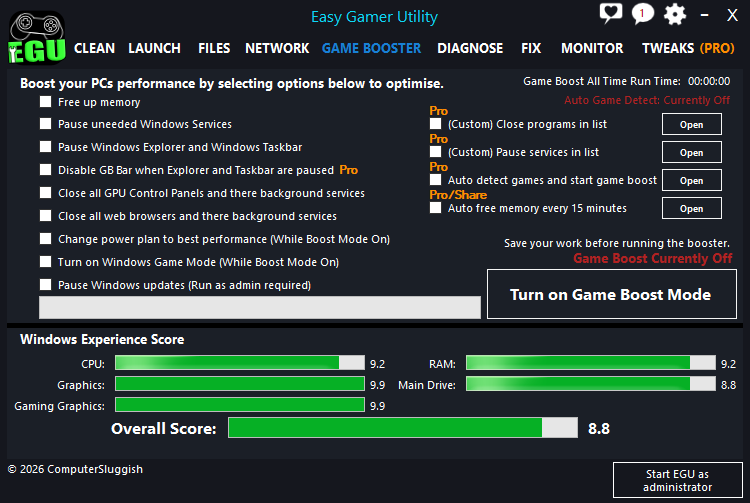
Easy Gamer Utility can be downloaded here:
https://computersluggish.com/downloads/easy-gamer-utility/
Clean Temporary Files and Windows Junk Data
Windows accumulates large amounts of temporary files, shader caches, update leftovers, and unused data over time. These files can slow disk access, which directly affects how quickly FiveM loads textures.
Running a system clean using Easy System Utility helps remove unnecessary files safely and improves overall disk responsiveness. When storage access becomes faster and cleaner, FiveM can stream textures more reliably without falling behind.
Regular cleaning is especially helpful if texture loss started appearing gradually rather than suddenly.
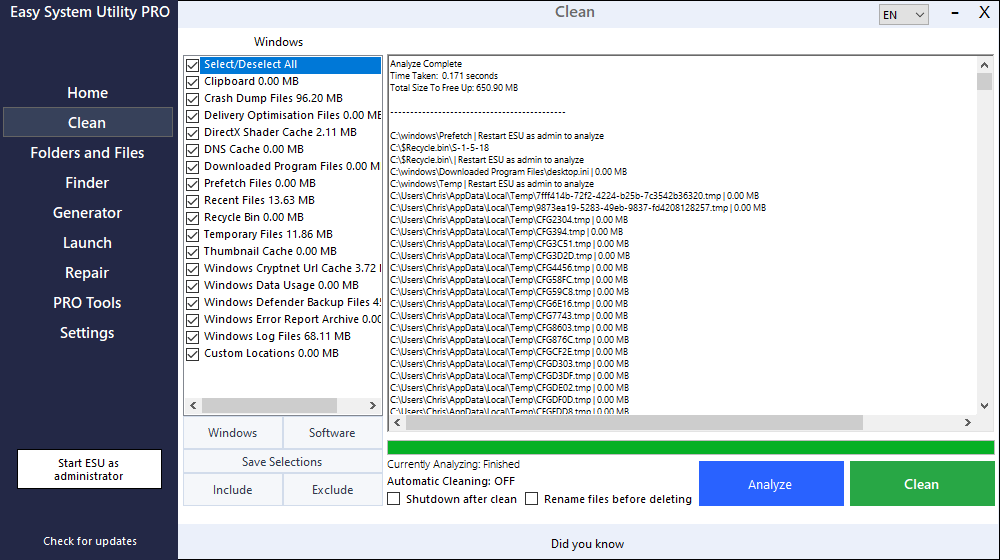
Easy System Utility is available here:
https://computersluggish.com/downloads/easy-system-utility/
Lower Extended Distance Scaling
Extended Distance Scaling heavily impacts texture streaming.
Open GTA graphics settings and reduce:
- Extended Distance Scaling
- Extended Shadows Distance
These settings increase how much of the world loads at once, which can overwhelm system memory on busy FiveM servers.
Set FiveM to High Performance Graphics Mode
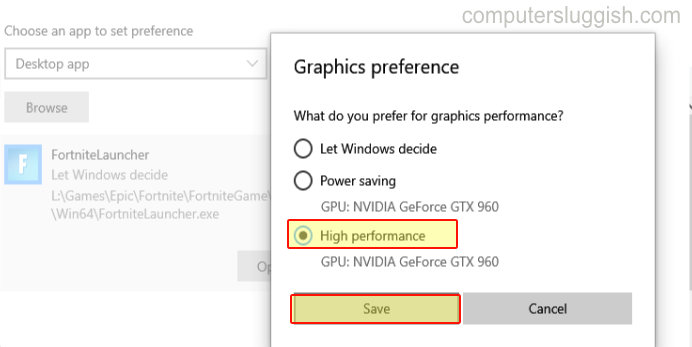
On Windows 10 and Windows 11:
- Open Settings
- System → Display → Graphics
- Add FiveM.exe
- Select Options
- Choose High Performance
This ensures the dedicated GPU handles rendering instead of integrated graphics.
Disable Overlays

Overlays consume memory and can interfere with streaming performance.
Disable:
- Discord Overlay
- NVIDIA Overlay
- Steam Overlay
- Xbox Game Bar
Reducing background hooks helps stabilise texture loading.
Update Graphics Drivers
New drivers often include memory management improvements.
Update using:
- NVIDIA GeForce Experience
- AMD Adrenalin Software
Restart your PC afterward.
Install FiveM on an SSD
Texture streaming relies heavily on storage speed.
If FiveM or GTA V is installed on a traditional hard drive, textures may fail to load fast enough, especially while driving quickly through cities.
Installing the game on an SSD significantly reduces texture loss issues.
Reduce Background RAM Usage
Texture loss frequently happens when RAM usage reaches its limit.
Running Easy Gamer Utility before gaming reduces memory usage automatically, helping FiveM maintain enough available RAM for texture streaming during long sessions.
Combining this with regular system cleaning using Easy System Utility keeps performance consistent over time rather than temporarily fixing the issue.
Why Texture Loss Gets Worse Over Time
Many players notice textures start fine but degrade after 20–40 minutes of gameplay. This happens because cached data and background processes slowly consume available resources.
A clean and optimised system delays memory saturation, allowing FiveM to stream assets correctly for longer sessions.
Keeping Windows clean and preparing the system before gaming is often more effective than constantly lowering graphics settings.
Final Thoughts
FiveM texture loss is usually caused by system resource limits rather than hardware failure.
The fixes that work most often are:
- Optimising Windows before launching FiveM
- Cleaning temporary files regularly
- Reducing background processes
- Lowering extended distance settings
- Running the game on high-performance graphics mode
- Installing the game on an SSD
Many players see the biggest improvement by combining system optimisation with regular cleaning to prevent resource buildup.
You can optimise your PC before gaming using Easy Gamer Utility:
https://computersluggish.com/downloads/easy-gamer-utility/
And clean unnecessary Windows files safely using Easy System Utility:
https://computersluggish.com/downloads/easy-system-utility/