
Trying to launch Crimson Desert and getting slapped with a DirectX error straight away is seriously frustrating. Sometimes the game won’t even open, other times it crashes with messages like:
- DirectX encountered an unrecoverable error
- Unknown DirectX error
- Fatal DirectX error
- DirectX runtime error
What makes it worse is how random it feels. You fix one thing, try again… and it still crashes. In most cases though, it comes down to a few common problems like drivers, broken DirectX files, or leftover cache causing conflicts.
Below are the fixes that are actually worth trying.
Fix Crimson Desert DirectX Error on PC
1. Update Your Graphics Drivers
This is always the first thing to check.
Outdated drivers are a huge cause of directx error issues, especially with newer games like Crimson Desert.
Update depending on your GPU:
- NVIDIA → GeForce Experience or website
- AMD → Adrenalin Software
- Intel → Driver & Support Assistant
Restart your PC after installing — it matters.
2. Verify Game Files (Steam)
If something installed wrong or got corrupted, it can easily trigger a directx 11 error or stop the game launching completely.

To verify:
- Open Steam
- Go to Library
- Right-click Crimson Desert
- Properties → Installed Files
- Click Verify integrity of game files
Steam will replace anything broken.
3. Repair / Reinstall DirectX
If you’re seeing errors like:
- directx setup error an internal error occurred
- error installing directx
- directx error code s1023
Then your DirectX install is likely messed up.
Download and install the latest DirectX End-User Runtime to repair missing or corrupted files.
4. Force DirectX 11 Instead of 12
Some systems don’t handle DirectX 12 very well yet.
If you’re running into a directx 12 error, try forcing DX11:
- Right-click Crimson Desert in Steam
- Click Properties
- Add this to Launch Options:
-dx11
This alone can stop crashes for a lot of people.
5. Close Background Apps & Overlays
Background apps can cause:
- unknown directx error
- directx 3d error
Before launching the game, close:
- Discord overlay
- NVIDIA / AMD overlays
- Browsers
- Recording software
Check Task Manager to make sure nothing heavy is running.
6. Install Windows Updates
If your system is out of date, DirectX can start acting up.

To update:
- Go to Settings → Windows Update
- Click Check for updates
- Install everything
This helps fix a lot of directx error windows 10 issues.
7. Use Easy Gamer Utility to Clear DirectX & GPU Cache
Instead of manually messing around with files, you can use Easy Gamer Utility (EGU) for FREE to clean things properly.
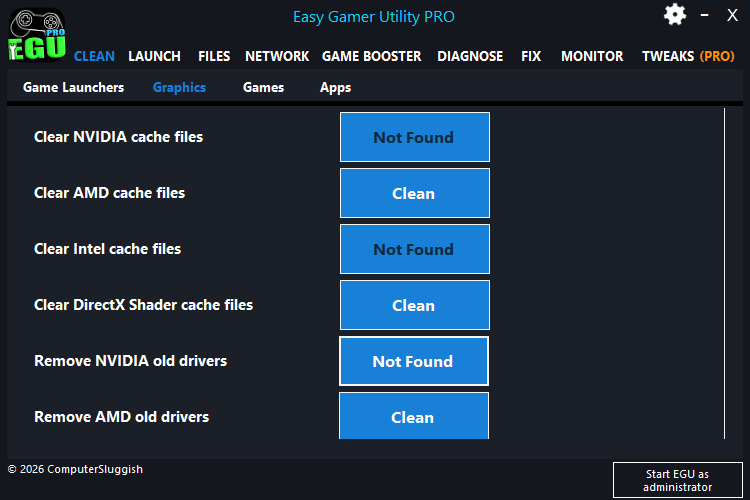
From the Graphics tab (like shown in the tool), you can:
- Clear DirectX shader cache files
- Clear AMD / NVIDIA cache files
- Remove old GPU drivers
This helps fix fatal directx error and random crashes caused by leftover or corrupted cache.
Download Easy Gamer Utility a tool made by me ComputerSluggish
8. Use EGU to Clear Steam Temp & Cache Files
Another thing that can cause DirectX problems is leftover launcher files.
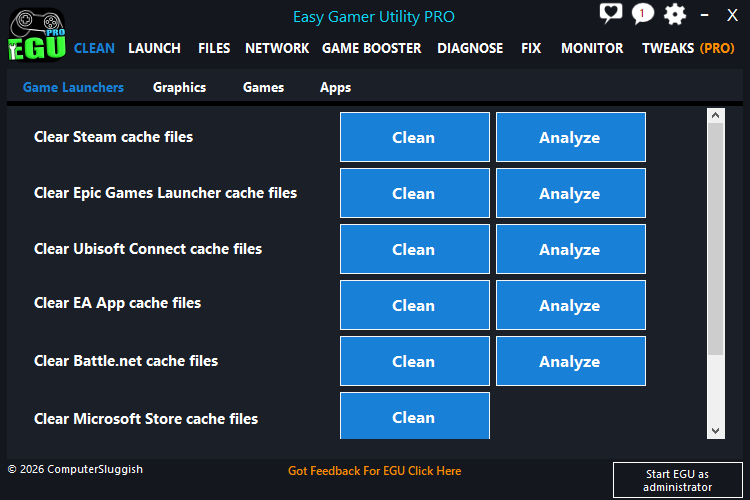
Inside EGU under Game Launchers, you can:
- Clear Steam cache files
- Clean other launcher temp files
This can fix weird startup issues and directx runtime error problems that don’t make much sense otherwise.
9. Use EGU Custom Game Fix (Crimson Desert)
If nothing else is working, EGU has a built-in Custom Game Fixing option.

You can:
- Select the Crimson Desert .exe
- Choose the launcher
- Run Attempt Fix
This applies multiple fixes automatically and can resolve stubborn unknown directx error issues.
10. Check Your DirectX Version
Just to be safe, make sure your system supports the required version.
To check:
- Press Win + R
- Type
dxdiag
Most modern games need DirectX 11 or 12.
Watch: How To Fix Crimson Desert Issues on PC
If you’re still having issues with Crimson Desert, the video below walks you through the most effective fixes step-by-step. It covers common problems like the game not launching, crashing on startup, and other errors, along with the exact settings and tools you can use to get it running properly. Follow along with the video and you should be able to fix most issues without having to try loads of different methods yourself 👍
Final Thoughts
DirectX errors in Crimson Desert can seem a lot worse than they actually are. Most of the time it’s not anything major — it usually comes down to something simple like outdated drivers, a messed up DirectX install, corrupted game files, or even just leftover cache causing problems in the background.
The main things that tend to fix it are updating your GPU drivers, verifying the game files through Steam, repairing DirectX, or switching the game to run on DX11 instead of DX12. Using something like Easy Gamer Utility to clear out cache files and apply quick fixes can also save a lot of time.
It might take a bit of trial and error, but once you go through these steps, there’s a good chance the game will start working properly again without those annoying DirectX crashes.