

Forza Horizon 6 Not Launching On PC? How To Fix It On Windows 10/11
If Forza Horizon 6 is not launching on your PC, then don’t worry, as there are a few simple things you can try to get the game working again.
This issue can happen on both Windows 10 and Windows 11, and it can be really annoying when you click Play and nothing happens, the game opens then closes, or Forza Horizon 6 gets stuck on a black screen.
In this guide, I have listed a few easy methods you can try to fix Forza Horizon 6 not opening, crashing on startup, freezing, or failing to launch on PC.
Why Is Forza Horizon 6 Not Launching?
There are a few reasons why Forza Horizon 6 might not launch on your Windows PC. It could be caused by outdated graphics drivers, missing Windows updates, damaged game files, background apps, overlays, antivirus software, or even the game not having the correct permissions.
Sometimes the issue can also be with the launcher you are using, such as Steam, Xbox App, or the Microsoft Store.
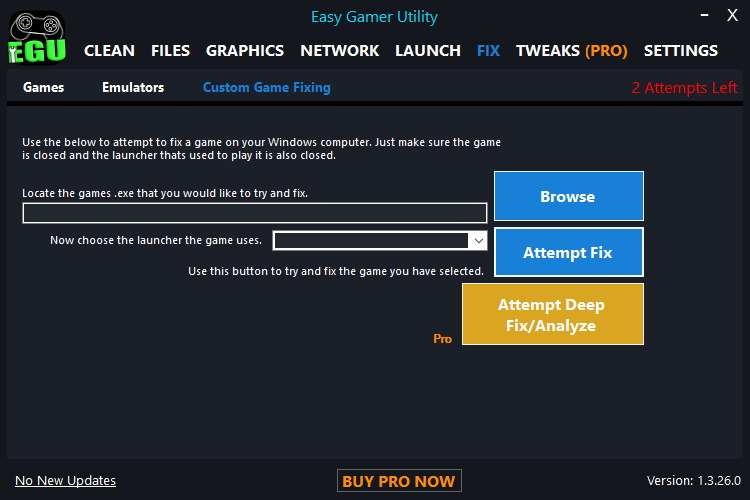
You can use Easy Gamer Utility to fix Forza Horizon 6:
How To Fix Forza Horizon 6 Not Launching On PC
Try each method below and then launch the game again after each one.
1. Restart Your PC
Before changing loads of settings, restart your computer.
This might sound basic, but it can fix a lot of launch problems, especially if Windows, Steam, Xbox App, or the Microsoft Store has had an update running in the background.
Once your PC has restarted, try opening Forza Horizon 6 again.
2. Run Forza Horizon 6 As Administrator
Forza Horizon 6 might not be launching because it does not have the right permissions.
To run the game as admin:
- Go to the folder where Forza Horizon 6 is installed
- Find the Forza Horizon 6 exe file
- Right-click the file
- Select Run as administrator
- See if the game now opens
If this works, you can right-click the exe again, go to Properties, then Compatibility, and tick Run this program as an administrator.

3. Update Your Graphics Driver
An outdated graphics driver can easily stop Forza Horizon 6 from launching or cause it to crash on startup.
Update your driver depending on your graphics card:
NVIDIA users should update using the NVIDIA app or GeForce Experience.
AMD users should update using AMD Software Adrenalin Edition.
Intel users should update using Intel Driver & Support Assistant.
After updating your graphics driver, restart your PC and then try launching Forza Horizon 6 again.
4. Check For Windows Updates
If Windows is out of date, it can cause problems with newer games.
To check for updates:
- Right-click the Start menu
- Click Settings
- Go to Windows Update
- Click Check for updates
- Install any available updates
- Restart your PC
Now try opening Forza Horizon 6 again.

5. Verify The Game Files
If one of the Forza Horizon 6 game files is missing or damaged, the game might not open.
Steam
- Open Steam
- Go to your Library
- Right-click Forza Horizon 6
- Click Properties
- Go to Installed Files
- Click Verify integrity of game files
Xbox App
- Open the Xbox App
- Find Forza Horizon 6
- Click the three dots or manage option
- Go to Files
- Select Verify and repair
Once it has finished checking the files, try launching the game again.
6. Close Background Apps
Some programs running in the background can stop Forza Horizon 6 from opening properly.
Try closing apps like:
- Discord
- MSI Afterburner
- RivaTuner
- Overwolf
- OBS
- RGB software
- Recording software
- Game boosters
- Browser tabs
- VPN software
Once you have closed them, launch Forza Horizon 6 again.
7. Disable Overlays
Overlays can sometimes cause Forza Horizon 6 to crash on startup or not launch at all.
Try turning off overlays for:
- Steam
- Discord
- Xbox Game Bar
- NVIDIA overlay
- AMD overlay
- MSI Afterburner
- RivaTuner
After disabling them, restart your PC and test the game again.
8. Allow Forza Horizon 6 Through Your Antivirus
Your antivirus or Windows Security might be blocking Forza Horizon 6 from opening.
You can try adding the game to your allowed apps list.
To check Windows Security:
- Open the Start menu
- Search for Windows Security
- Open Virus & threat protection
- Check if anything related to Forza Horizon 6 has been blocked
- Add the game folder as an exclusion if needed
Only do this if you know the game files are from a trusted source.
9. Repair Gaming Services
If you are playing Forza Horizon 6 through the Xbox App or Microsoft Store, the issue could be with Gaming Services.
Try this:
- Right-click the Start menu
- Click Installed apps
- Search for Gaming Services
- Click the three dots
- Select Advanced options
- Click Repair
- If that does not work, click Reset
You can also do the same for the Xbox App and Microsoft Store.
10. Reset The Microsoft Store Cache
If you are using the Microsoft Store version of Forza Horizon 6, clearing the Store cache can help.
To do this:
- Press Windows key + R
- Type wsreset.exe
- Press Enter
- Wait for the window to close
- Restart your PC
Now try opening Forza Horizon 6 again.

11. Check Your PC Meets The Requirements
If your PC does not meet the minimum requirements for Forza Horizon 6, the game may not launch, or it may crash before reaching the menu.
Check things like:
- Graphics card
- Processor
- RAM
- Storage space
- Windows version
- DirectX support
Also make sure the game is installed on a healthy drive with enough free space.
12. Move The Game To Another Drive
If Forza Horizon 6 is installed on an old or nearly full drive, it could cause launch problems.
If possible, move the game to an SSD, as this can help with loading and stability.
For Xbox App users, you can move the game from Windows settings.
For Steam users, you can move the install folder through Steam storage settings.
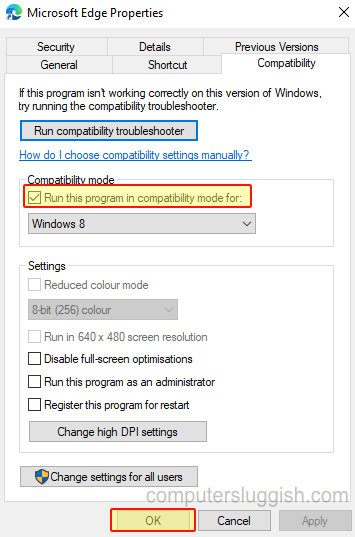
13. Turn Off Compatibility Mode
Sometimes Windows compatibility settings can cause more problems than they fix.
To check this:
- Right-click the Forza Horizon 6 exe file
- Click Properties
- Go to Compatibility
- Untick compatibility mode if it is enabled
- Click Apply
- Try launching the game again
You can still leave Run as administrator enabled if that helped.
14. Fix Forza Horizon 6 Using Easy Gamer Utility
You can also try using Easy Gamer Utility to help fix Forza Horizon 6 on your PC.
You can download Easy Gamer Utility here: https://computersluggish.com/downloads/easy-gamer-utility/
To do this:
- Open Easy Gamer Utility
- Go to the Fix section
- Under custom game fixing, click Browse
- Select the Forza Horizon 6 exe file
- Choose the launcher you purchased the game on
- Click Attempt Fix
This can help with common game launch problems, damaged settings, and issues that might stop Forza Horizon 6 from opening correctly.
15. Reinstall Forza Horizon 6
If nothing above has worked, you might need to reinstall the game.
Before doing this, make sure your save data is backed up or synced with your account.
Uninstall Forza Horizon 6, restart your PC, then install it again. If you have more than one drive, try installing it on a different drive this time.
Check out this video on what else you can do to fix FH6:
Final Thoughts
Hopefully one of the methods above has helped fix Forza Horizon 6 not launching on PC.
The most common fixes are usually updating your graphics driver, verifying the game files, running the game as administrator, disabling overlays, and repairing the Xbox App or Microsoft Store if you are using that version.
If Forza Horizon 6 is still not opening, then it could be a problem with the game itself, a launcher issue, or something on your PC blocking the game from starting.