
Crimson Desert Intel Arc GPU Not Supported
If you’re trying to play Crimson Desert on an Intel Arc GPU and getting a message saying your graphics device isn’t supported, or the game simply won’t launch properly, you’re not alone. This is something quite a few players are running into right now.
At the moment, this isn’t really something you’ve done wrong or a setting you’ve messed up. It’s more to do with compatibility between the game and Intel Arc graphics cards. Since the game is still being worked on and updated, support for certain GPUs (especially newer or less common ones like Arc) can be a bit hit or miss.
Right now, there isn’t a proper fix yet, but there are a few things you can try or keep an eye on.
Use Easy Gamer Utility to Help Quickly
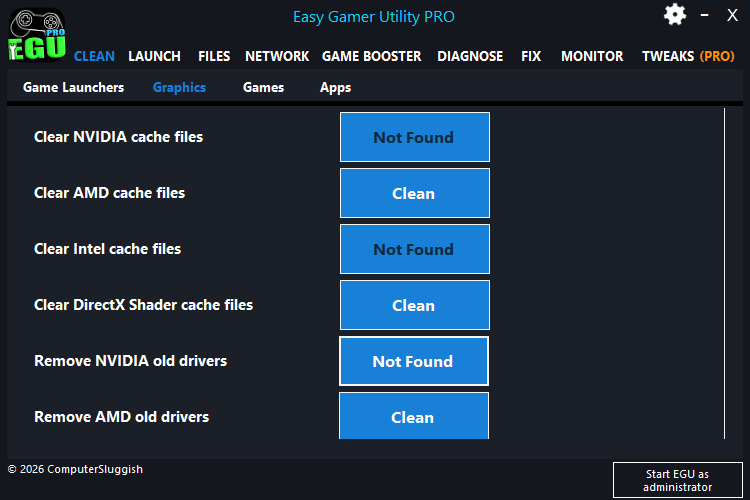
Instead of manually messing around with files, you can use Easy Gamer Utility for FREE which is made by us ComputerSluggish to clean things properly and quickly.
I made Easy Gamer Utility so you do not have to try doing multiple methods to try and figure out the problem Easy Gamer Utility does this for you.
1. Wait for a Game Update (Most Likely Fix)
The main fix will most likely come from the developers.
As the game gets updated, support for more hardware (including Intel Arc GPUs) should improve. This kind of issue is pretty common early on with new or demanding games.
Make sure you keep the game updated through Steam so you don’t miss any fixes when they roll out.
2. Update Intel Arc Drivers
Intel is still improving Arc drivers regularly, and updates can include compatibility fixes for newer games.
What to do:
- Open Intel Arc Control
- Check for driver updates
- Install the latest version
- Restart your PC
Even if it doesn’t fix it straight away, it’s worth staying on the latest driver.
3. Install the Latest Windows Updates
Windows updates can also affect GPU compatibility and game performance.

What to do:
- Go to Settings → Windows Update
- Click Check for updates
- Install everything available
This can sometimes help with detection or support issues.
4. Try Forcing DirectX 11 (Optional Test)
In some cases, forcing a different DirectX version can help with compatibility.
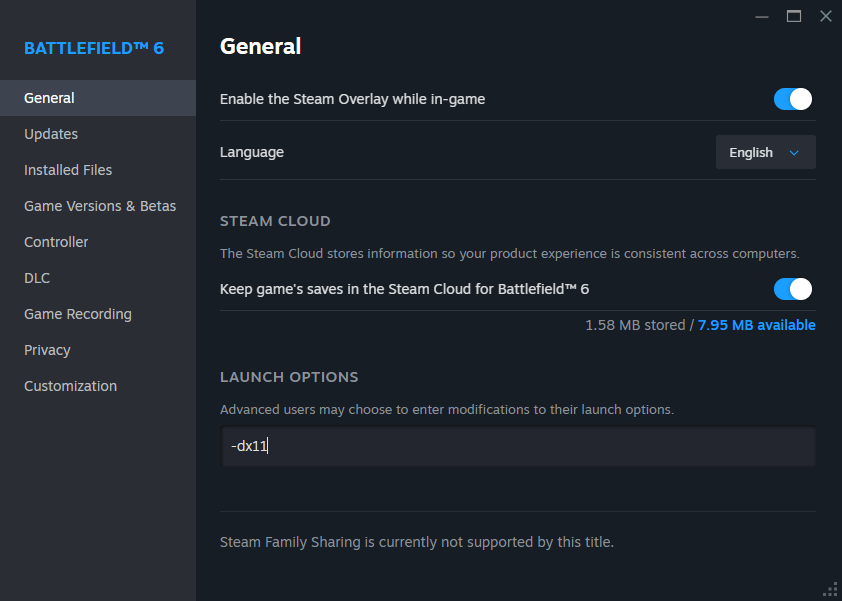
What to do:
- Right-click Crimson Desert in Steam
- Click Properties
- In Launch Options, type:
-dx11
This doesn’t always work for Arc GPUs, but it’s worth a quick test.
5. Use Easy Gamer Utility for Quick Checks
Even though this specific issue is likely a compatibility problem, you can still use Easy Gamer Utility (made by myself ComputerSluggish) to rule out other possible causes.

You can:
- Clear graphics cache (DirectX, Intel cache)
- Check for system conflicts
- Run a custom game fix to test launch issues
What to do:
- Open Easy Gamer Utility
- Go to the Custom Game Fix section
- Put the path in for the Crimson Desert .exe
- Click Attempt Fix
This won’t magically add Arc support, but it can help confirm nothing else on your system is causing the issue.
Read more about Easy Gamer Utility here
Watch: How To Fix Crimson Desert Issues on PC
If you’re still having issues with Crimson Desert, the video below walks you through the most effective fixes step-by-step. It covers common problems like the game not launching, crashing on startup, and other errors, along with the exact settings and tools you can use to get it running properly. Follow along with the video and you should be able to fix most issues without having to try loads of different methods yourself 👍
Final Thoughts
If you’re using an Intel Arc GPU and Crimson Desert isn’t supported or won’t run properly, it’s most likely down to current compatibility rather than a problem with your setup.
For now, the best thing you can do is keep your drivers and Windows up to date and wait for either a game update or a new Intel driver that improves support.
These kinds of issues usually get fixed over time, so it’s worth checking back after updates as support improves.