
How To Fix Deadlock Not Starting On PC
If Deadlock won’t start on your PC, you’re not the only one experiencing the problem. Some players click Play in Steam and nothing happens, while others see the game try to launch and then immediately close.
This type of issue can be caused by several things such as corrupted game files, outdated drivers, missing Windows updates, or background programs interfering with the game.
The good news is there are a few simple fixes that often get the game launching again.
Below are the most common solutions that can help fix Deadlock not starting on PC.
BEST PC Game Crashing FIX Made By Us
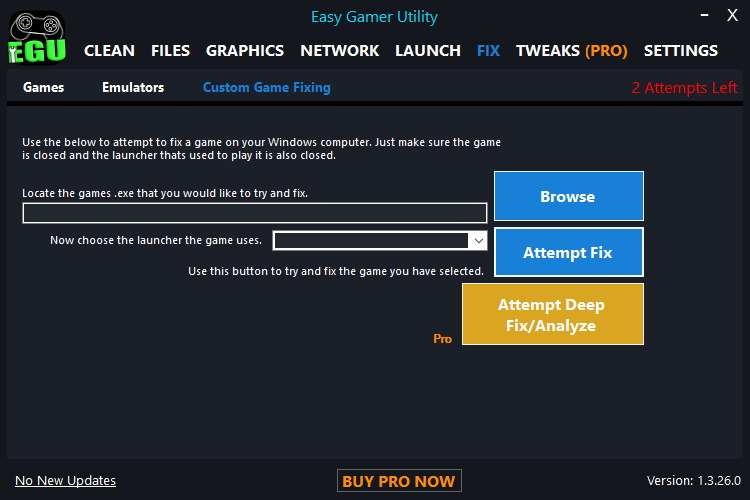
If you’re looking for a fast and automated fix, try Easy Gamer Utility — designed to repair crash-related issues without digging into system settings.
Easy Gamer Utility Can:
- Clear corrupted config and cache files
- Repair broken DirectX and Visual C++ runtimes
- Scan for driver conflicts
- Disable crash-prone Radeon/NVIDIA settings
- Apply crash fixes specific to Deadlock
How to Use:
- Download Easy Gamer Utility here
- Open the app and select Deadlock
- Click “Fix Game Crashes”
- EGU will now launch the game
1. Restart Your PC
Before trying anything else, restart your computer.
A simple restart can fix temporary system issues, clear stuck background processes, and reset drivers that might be preventing the game from launching.
Once your PC starts back up, open Steam and try launching Deadlock again.
2. Check Your PC Meets The Minimum Requirements
If your PC does not meet the game’s minimum system requirements, the game may fail to start properly.
Make sure your system has:
- A compatible CPU
- Enough RAM available
- A supported graphics card
- Enough free storage space
If your system is struggling with resources, closing background programs can also help.
3. Verify Deadlock Game Files In Steam
Sometimes the game will not start because files became corrupted or failed to download correctly.

Steam has a tool that checks the installation and replaces any damaged files.
To verify the game files:
- Open Steam
- Go to your Library
- Right-click Deadlock
- Click Properties
- Select Installed Files
- Click Verify integrity of game files
Steam will scan the game and automatically download anything missing.
4. Update Your Graphics Drivers
Outdated graphics drivers can prevent games from launching properly.
Make sure you are using the latest drivers for your GPU:
- NVIDIA users can update using GeForce Experience or the NVIDIA website
- AMD users can update through AMD Adrenalin Software
- Intel users can update through Intel Driver & Support Assistant
After installing new drivers, restart your PC before launching the game.
5. Install The Latest Windows Updates
Windows updates often include important fixes and updated system components required for newer games.

To check for updates:
- Open Windows Settings
- Click Windows Update
- Select Check for updates
Install any available updates and restart your PC.
6. Run Steam As Administrator
Sometimes permission issues can stop games from launching properly.

Running Steam as administrator can fix this.
To do this:
- Close Steam completely
- Right-click the Steam shortcut
- Click Run as administrator
- Launch Deadlock from your Steam library
7. Disable Game Overlays
Game overlays can occasionally conflict with certain games and prevent them from launching.
Try temporarily disabling overlays such as:
- Steam Overlay
- Discord Overlay
- NVIDIA Overlay
- AMD Overlay
After disabling them, restart Steam and try launching the game again.
8. Optimise Windows For Gaming
Another common reason games fail to launch is because too many background services or programs are running.
Reducing background processes and optimising Windows for gaming can sometimes resolve launch issues.
A quick way to do this is by using Easy Gamer Utility. The tool automatically adjusts several Windows settings, disables unnecessary services, and frees up system resources to improve gaming performance.
You can download it here: https://computersluggish.com/downloads/easy-gamer-utility/
After installing it, run the optimisation options before launching Deadlock.
Final Thoughts
If Deadlock is not starting on your PC, the problem is usually related to corrupted game files, outdated drivers, or Windows conflicts.
The fixes that most commonly solve the issue are:
- Restarting your PC
- Verifying the game files in Steam
- Updating graphics drivers
- Installing Windows updates
- Disabling overlays
- Optimising Windows with Easy Gamer Utility
Hopefully one of the solutions above helps you get Deadlock launching properly so you can jump back into the game.