
How To Fix FiveM Crashing on Startup On Windows
If FiveM crashes on startup, closes immediately after launching, or never fully opens before returning to desktop, you’re dealing with one of the most common FiveM problems on PC.
Startup crashes usually happen before the main menu appears, sometimes without an error message at all. This can be frustrating because it makes the issue feel random, but in most cases the cause is related to Windows configuration, cached files, or system conflicts rather than FiveM itself.
FiveM, powered by Cfx.re, modifies Grand Theft Auto V to allow multiplayer on customised servers, which means it relies heavily on both GTA V files and Windows services working correctly together.
This guide explains how to fix FiveM crashing on startup for Windows 10 and Windows 11 users.
Why FiveM Crashes When Launching
When FiveM starts, it loads GTA V components, verifies files, checks network services, and prepares graphics resources all at once. If any part fails, the application may crash instantly.
The most common causes include:
- Corrupted FiveM cache files
- Damaged temporary Windows files
- Background programs interfering with launch
- Outdated graphics drivers
- Missing permissions
- Overloaded system resources
- Conflicting overlays or monitoring software
Many startup crashes happen because Windows is cluttered with temporary files or running too many background processes at once.
Restart Your PC First
A full restart clears memory conflicts and background services that may have become stuck.
If your PC has been running for long periods, leftover processes can interfere with FiveM during startup.
Restart first, then test FiveM again.
Clear FiveM Cache Files (Most Important Fix)
Corrupted cache data is one of the biggest reasons FiveM crashes immediately.
- Press Windows Key + R
- Type:
%localappdata%
- Open the FiveM folder
- Navigate to FiveM Application Data → data
- Delete:
- cache
- server-cache
- server-cache-priv
Do not delete the game folder.
Launch FiveM again afterward.
Clean Temporary Windows Files
Over time, Windows builds up thousands of temporary files, leftover update data, and cached system files. These can cause instability when programs try to access outdated or corrupted data during startup.
Using a desktop cleaning tool like Easy System Utility can help remove junk files safely and clear unnecessary system clutter. Cleaning temporary files, leftover caches, and unused data often resolves unexplained crashes — especially on PCs used daily for browsing, downloads, and gaming.
Easy System Utility focuses on safely cleaning Windows without removing important system components, making it useful when FiveM or other games begin crashing unexpectedly.
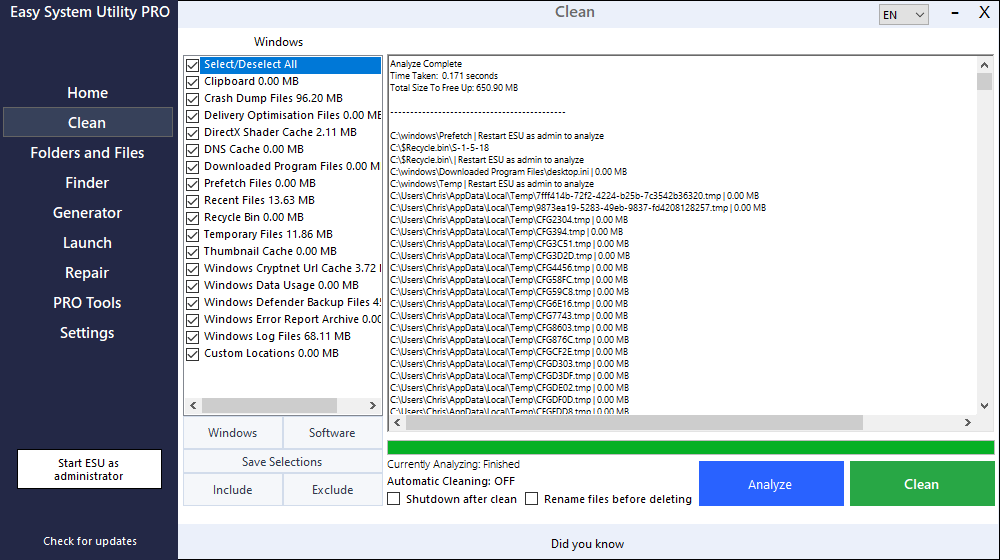
You can download Easy System Utility here:
https://computersluggish.com/downloads/easy-system-utility/
After cleaning, restart your PC and try launching FiveM again.
Run FiveM as Administrator

Permission conflicts can prevent FiveM from accessing required files.
- Right-click FiveM
- Select Run as administrator
You can enable this permanently under Compatibility settings.
Update Graphics Drivers
Graphics drivers play a major role in startup stability.
Install the latest drivers using:
- NVIDIA GeForce Experience
- AMD Adrenalin Software
Restart your PC after updating.
Disable Overlays
Overlays frequently cause startup crashes because they inject into the game during launch.
Disable temporarily:
- Discord Overlay
- Steam Overlay
- NVIDIA Overlay
- Xbox Game Bar
Try launching FiveM again afterward.
Reduce Background Processes Before Launching
FiveM requires stable CPU and memory resources during startup. If Windows is busy running background applications, the program may crash before finishing initialisation.
Common background conflicts include:
- Web browsers
- Game launchers updating
- RGB software
- Recording applications
- Auto-update services
Many players run Easy Gamer Utility before launching FiveM to prepare their system for gaming. It includes several optimisation options that temporarily stop unnecessary background tasks, free RAM, and prioritise gaming performance.
Reducing system load during startup often prevents crashes that occur immediately after opening FiveM.
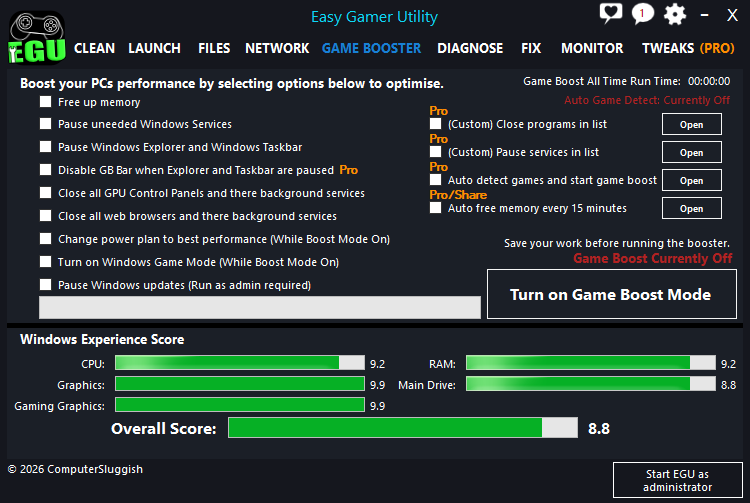
Easy Gamer Utility is available here:
https://computersluggish.com/downloads/easy-gamer-utility/
Verify GTA V Works Properly
FiveM depends entirely on GTA V functioning correctly.
Open GTA V directly and confirm it reaches the main menu without crashing. If GTA V has issues, FiveM will crash as well.
Verify GTA V game files through Steam, Epic Games, or Rockstar Launcher if needed.
Set FiveM to High Performance Graphics Mode
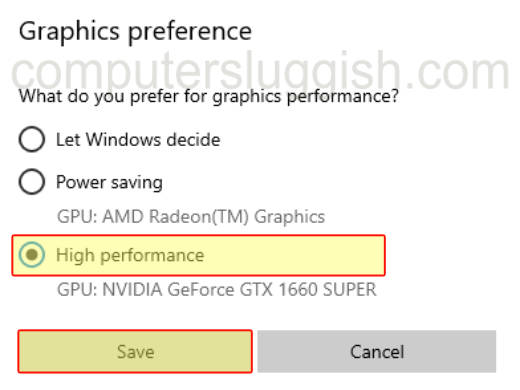
Windows may assign FiveM to power-saving graphics automatically.
On Windows 10 or Windows 11:
- Open Settings
- Go to System → Display → Graphics
- Add FiveM.exe
- Select Options
- Choose High Performance
Restart FiveM afterward.
Update Windows Completely

Go to Settings → Windows Update → Check for Updates and install everything available.
Windows updates frequently include fixes for gaming frameworks and system stability.
Why Cleaning and Optimising Windows Helps Prevent Startup Crashes
Startup crashes are often the result of accumulated system clutter or resource conflicts rather than a broken application.
Temporary files, background services, and memory usage build up over time and can interfere with programs that need a clean launch environment.
Cleaning unused files with Easy System Utility and preparing your PC using Easy Gamer Utility before gaming helps reduce these conflicts, giving FiveM the resources it needs to start properly.
Final Thoughts
If FiveM crashes on startup, the issue is usually fixable without reinstalling Windows or GTA V.
The fixes that work most often are:
- Clearing FiveM cache files
- Cleaning temporary Windows files
- Updating drivers
- Disabling overlays
- Reducing background processes before launch
Many players see the best results after both cleaning their system and optimising it before gaming sessions.
You can try Easy System Utility for safely cleaning Windows here:
https://computersluggish.com/downloads/easy-system-utility/
And Easy Gamer Utility for preparing your PC before gaming here:
https://computersluggish.com/downloads/easy-gamer-utility/