
If you’re launching Crimson Desert on PC and end up stuck on a black screen, you’re definitely not alone. Some players see it right when the game starts, while others run into it after the logo or when loading into gameplay.
Most of the time, black screen problems come down to graphics driver issues, incorrect display settings, or conflicts with other software running in the background. The good news is there are several fixes that often solve it.
Here are some methods that have helped players get Crimson Desert working again.
How To Fix Crimson Desert Black Screen Issues on PC
Quick Crash Fix: Using A Tool I Made ComputerSluggish (Optional)
If you don’t want to manually troubleshoot everything, you can try Easy Gamer Utility for free, which is built to fix common game crashes and related issues automatically.
Just put the .exe path to Crimson Desert click Attempt Fix and Easy Gamer Utility will try and launch the game after running a few tests to find out whats causing the game to black screen. I made Easy Gamer Utility so you do not have to try doing multiple methods to try and figure out the problem Easy Gamer Utility does this for you.
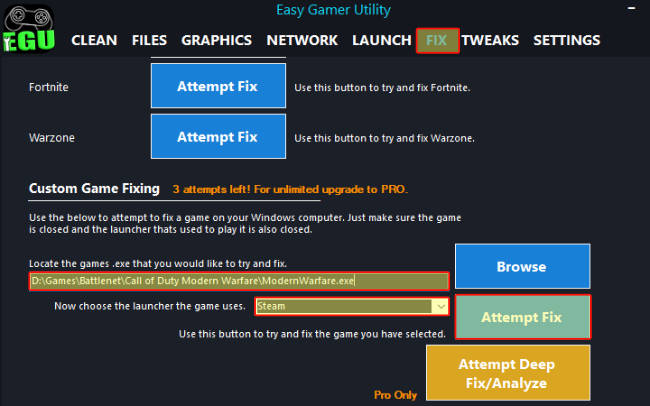
What it does:
- Removes broken config and cache files
- Repairs DirectX and Visual C++ components
- Checks for driver-related issues
- Disables unstable GPU settings (NVIDIA/AMD)
- Applies fixes tailored for Crimson Desert
Steps:
- Download and install Easy Gamer Utility for FREE
- Open it and choose Crimson Desert
- Click “Fix Game Crashes”
- Let it run and launch the game
1. Restart Your Computer
Before diving into more advanced fixes, just restart your PC.
This clears temporary glitches, resets drivers, and shuts down background services that might be causing the issue.
Once you’re back in Windows, try launching the game again.
2. Verify Game Files (Steam)
If the game files are damaged or incomplete, Crimson Desert might fail to display properly and just show a black screen.

To check your files:
- Open Steam
- Go to your Library
- Right-click Crimson Desert
- Select Properties
- Go to Installed Files
- Click Verify integrity of game files
Steam will scan everything and fix any missing or corrupted files.
3. Update Your GPU Drivers
Old or incompatible graphics drivers are one of the biggest causes of black screen problems.
Make sure yours are up to date:
- NVIDIA: via GeForce Experience or official website
- AMD: through Adrenalin Software
- Intel: using Driver & Support Assistant
After updating, restart your PC before launching the game.
4. Launch the Game in Windowed Mode
Fullscreen can sometimes cause display issues depending on your setup.
Running the game in windowed mode can help bypass that.
How to do it:
- Open Steam
- Go to your Library
- Right-click Crimson Desert
- Click Properties
- In Launch Options, type:
-windowed - Start the game and see if it loads properly
5. Turn Off Overlays
Overlays can sometimes interfere with games and lead to black screen problems.
Try disabling:
- Steam Overlay
- Discord Overlay
- NVIDIA Overlay
- AMD Overlay
After turning them off, relaunch the game and check if it’s fixed.
6. Update Windows
Running an outdated version of Windows can cause compatibility issues with newer games and drivers.

To update:
- Open Settings
- Go to Windows Update
- Click Check for updates
- Install anything available
Restart your PC once updates are done.
7. Optimise Your System for Gaming
If too many background processes are running, they can interfere with the game starting properly.
Optimising Windows can help free up resources and reduce conflicts.
Tools like Easy Gamer Utility can:
- Disable unnecessary services
- Improve system performance
- Reduce background load
Run these optimisations before launching Crimson Desert for the best results.
8. Check Your Display Setup
Sometimes the issue comes down to incorrect display settings.
Make sure:
- Your monitor is using the correct refresh rate
- The resolution is supported
- You’re using a proper cable (HDMI/DisplayPort)
If you have multiple monitors, try launching the game with just your main display enabled.
Watch: How To Fix Crimson Desert Issues on PC
If you’re still having issues with Crimson Desert, the video below walks you through the most effective fixes step-by-step. It covers common problems like the game not launching, crashing on startup, and other errors, along with the exact settings and tools you can use to get it running properly. Follow along with the video and you should be able to fix most issues without having to try loads of different methods yourself 👍
Final Thoughts
Black screen issues in Crimson Desert are usually tied to driver problems, corrupted files, or system conflicts.
The fixes that tend to work best include:
- Verifying game files
- Updating graphics drivers
- Using windowed mode
- Disabling overlays
- Keeping Windows updated
- Optimising your system
With a bit of trial and error, one of these should get the game running properly again so you can jump back in without the black screen.