
If you’re trying to jump into Crimson Desert on PC but it keeps crashing, freezing, or suddenly closing, you’re not the only one dealing with it. Since the game is still being updated and improved, stability problems can pop up from time to time.
Crashes can be caused by a range of things — outdated drivers, damaged game files, Windows conflicts, or even background apps using too much of your system.
Below are some fixes that have worked for many players and may help get Crimson Desert running properly again.
How To Fix Crimson Desert Crashing on PC
Quick Crash Fix: Using A Tool I Made ComputerSluggish
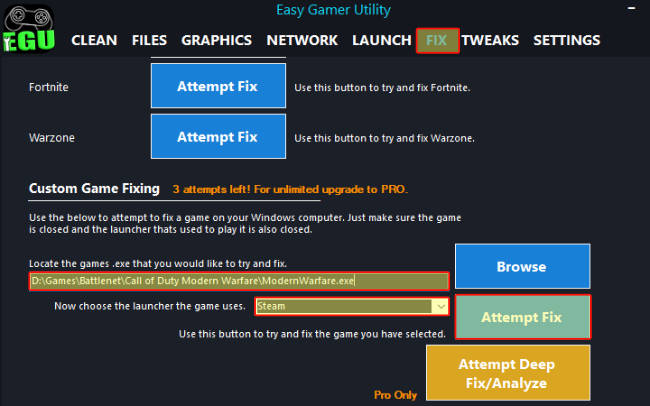
If you want a faster, more automated solution, you can try a tool like Easy Gamer Utility for free, which is designed to fix common crash issues without needing to tweak everything manually.
Just put the .exe path to Crimson Desert click Attempt Fix and Easy Gamer Utility will try and launch the game after running a few tests to find out whats causing the game to crash. I made Easy Gamer Utility so you do not have to try doing multiple methods to try and figure out the problem Easy Gamer Utility does this for you.
What it can do:
- Clean out broken config and cache files
- Repair DirectX and Visual C++ issues
- Check for driver conflicts
- Disable problematic GPU settings (NVIDIA/AMD)
- Apply game-specific fixes for Crimson Desert
How to use it:
- Download and install Easy Gamer Utility for FREE
- Open it and select FIX tab and put the path in for Crimson Desert
- Click “Attempt Fix”
- Let it run and launch the game
1. Make Sure Your PC Meets Requirements
Before anything else, double-check that your PC actually meets the minimum specs for Crimson Desert. If your system is underpowered, crashes are much more likely.
Also ensure you’ve got enough free storage and available RAM before launching the game.
2. Verify Game Files (Steam)
Corrupted or missing files are a very common cause of crashes.

To check your files:
- Open Steam
- Go to your Library
- Right-click Crimson Desert
- Select Properties
- Go to Installed Files
- Click Verify integrity of game files
Steam will scan everything and re-download anything that’s broken or missing.
3. Update Your Graphics Drivers
Old GPU drivers can easily lead to crashes, performance drops, or launch issues.
Make sure yours are up to date:
- NVIDIA: GeForce Experience or official site
- AMD: Adrenalin Software
- Intel: Driver & Support Assistant
After updating, restart your PC before trying again.
4. Install Windows Updates
Keeping Windows updated is important, especially for newer games.

To check:
- Open Settings
- Go to Windows Update
- Click Check for updates
- Install anything available
Restart your system once updates are complete.
5. Lower In-Game Graphics Settings
If the game crashes during gameplay or loading screens, your settings might be too demanding.
Try lowering:
- Texture Quality
- Shadow Quality
- Effects
- Anti-Aliasing
- Resolution
This reduces GPU and VRAM usage, which can help prevent crashes.
6. Close Background Programs
Running too many apps in the background can cause conflicts or eat up resources.
Before launching the game, close things like:
- Browsers
- Recording/streaming software
- Overlays
- Other launchers
- Heavy background apps
Use Task Manager (Ctrl + Shift + Esc) to see what’s running.
7. Optimise Windows for Gaming
Another useful step is trimming down background processes while gaming.
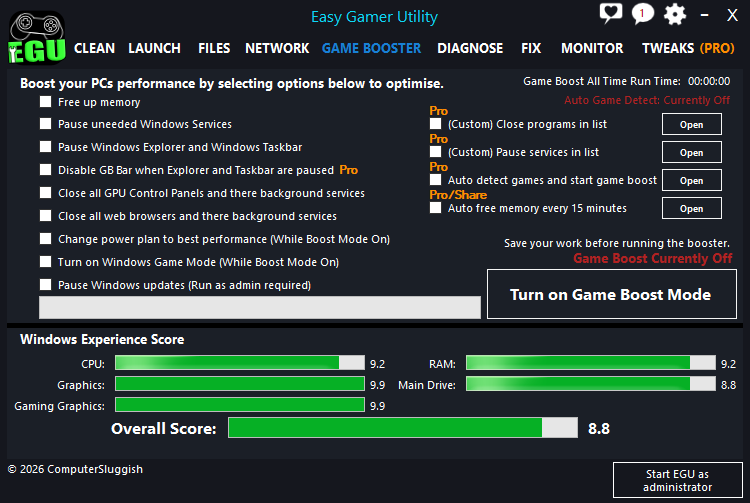
Tools like Easy Gamer Utility can:
- Disable unnecessary services
- Free up system resources
- Apply performance tweaks automatically
Download Easy Gamer Utility here
Running these optimisations before launching Crimson Desert can reduce crashes and improve stability.
8. Restart Your PC
It sounds basic, but it works. Restarting clears temporary bugs, memory issues, and stuck processes that might be causing problems.
After rebooting, launch the game again and see if things improve.
Watch: How To Fix Crimson Desert Issues on PC
If you’re still having issues with Crimson Desert, the video below walks you through the most effective fixes step-by-step. It covers common problems like the game not launching, crashing on startup, and other errors, along with the exact settings and tools you can use to get it running properly. Follow along with the video and you should be able to fix most issues without having to try loads of different methods yourself 👍
Final Thoughts
Crimson Desert is still evolving, so occasional crashes aren’t unusual. That said, most issues tend to come from things like outdated drivers, corrupted files, or system performance limits.
The fixes that usually work best are:
- Verifying game files
- Updating GPU drivers
- Installing Windows updates
- Lowering graphics settings
- Optimising your system
Hopefully, one of these solutions helps you get back into the game without crashes 👍