
If Crimson Desert won’t start on your PC, you’re definitely not the only one dealing with it. Some players hit Play in Steam and nothing happens, while others see the game briefly try to open before it shuts down again.
Issues like this are usually caused by things like corrupted files, outdated drivers, missing Windows updates, or software conflicts in the background.
The good news is there are a few straightforward fixes that often get the game up and running again.
How To Fix Crimson Desert Not Launching on PC
Quick Fix Tool Made By Me ComputerSluggish (Optional)
If you’d rather not go through everything manually, you can try Easy Gamer Utility for FREE, which is designed to automatically fix common crash and launch problems.
Just put the .exe path to Crimson Desert click Attempt Fix and Easy Gamer Utility will try and launch the game after running a few tests to find out whats causing the game to not launch. I made Easy Gamer Utility so you do not have to try doing multiple methods to try and figure out the problem Easy Gamer Utility does this for you.

What it can do:
- Remove corrupted config and cache files
- Repair DirectX and Visual C++ components
- Detect driver conflicts
- Disable unstable GPU settings (NVIDIA/AMD)
- Apply fixes tailored for Crimson Desert
How to use it:
- Download and install Easy Gamer Utility for FREE
- Open it and select FIX tab and put the path in for Crimson Desert
- Click “Attempt Fix”
- Let it run and launch the game
1. Restart Your PC
Before trying anything else, give your PC a quick restart.
This can clear temporary bugs, reset drivers, and stop background processes that might be blocking the game from launching.
Once your system is back on, open Steam and try again.
2. Check System Requirements
Make sure your PC actually meets the minimum requirements for Crimson Desert.
Check that you have:
- A supported CPU
- Enough RAM
- A compatible graphics card
- Sufficient free storage
If your system is close to the limit, closing unnecessary apps can help free up resources.
3. Verify Game Files in Steam
If the game didn’t install correctly or files became corrupted, it may fail to launch.

To verify:
- Open Steam
- Go to your Library
- Right-click Crimson Desert
- Click Properties
- Go to Installed Files
- Select Verify integrity of game files
Steam will scan and replace any missing or broken files.
4. Update Graphics Drivers
Old GPU drivers are a common reason games won’t start properly.
Update yours using:
- NVIDIA: GeForce Experience or official site
- AMD: Adrenalin Software
- Intel: Driver & Support Assistant
After updating, restart your PC before launching the game again.
5. Install Windows Updates
Windows updates often include important fixes and compatibility improvements.

To check:
- Open Settings
- Go to Windows Update
- Click Check for updates
- Install anything available
Restart your PC once updates are complete.
6. Run Steam as Administrator
Sometimes permission issues can stop games from launching.

To fix this:
- Fully close Steam
- Right-click the Steam shortcut
- Select Run as administrator
- Launch Crimson Desert from your library
7. Disable Overlays
Overlays can sometimes interfere with games and prevent them from starting.
Try turning off:
- Steam Overlay
- Discord Overlay
- NVIDIA Overlay
- AMD Overlay
After disabling them, restart Steam and try again.
8. Optimise Windows for Gaming
Too many background services or apps can stop games from launching properly.
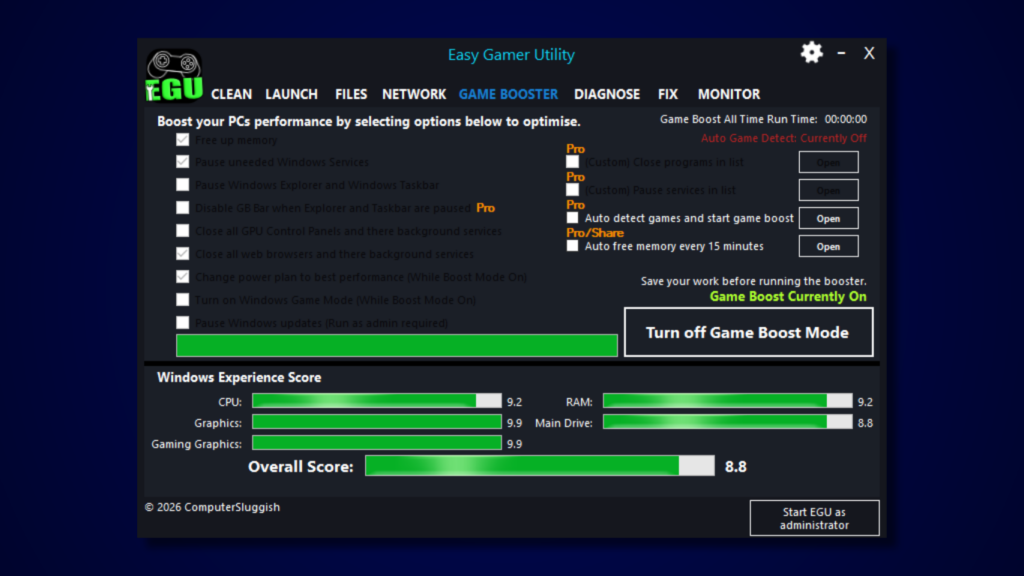
Optimising your system can help free up resources and reduce conflicts.
Tools like Easy Gamer Utility that I made to help out gamers can:
- Disable unnecessary background services
- Improve performance
- Free up system resources
Download Easy Gamer Utility here
Run these optimisations before starting Crimson Desert.
Watch: How To Fix Crimson Desert Issues on PC
If you’re still having issues with Crimson Desert, the video below walks you through the most effective fixes step-by-step. It covers common problems like the game not launching, crashing on startup, and other errors, along with the exact settings and tools you can use to get it running properly. Follow along with the video and you should be able to fix most issues without having to try loads of different methods yourself 👍
Final Thoughts
If Crimson Desert isn’t launching, it’s usually down to corrupted files, outdated drivers, or system-related conflicts.
The fixes that tend to work best are:
- Restarting your PC
- Verifying game files
- Updating GPU drivers
- Installing Windows updates
- Disabling overlays
- Optimising your system
Hopefully, one of these solutions gets the game launching properly so you can jump in without any issues 👍