
How Keywords and Meta Descriptions Help WordPress SEO
If you’re running a WordPress website and trying to improve your search rankings, one of the first things you’ll usually hear about is adding keywords and meta descriptions.
When I first started working with WordPress sites, this was one of the areas that confused me the most. WordPress itself doesn’t really show you where to add SEO information like keywords or descriptions unless you install an SEO plugin.
That’s where Yoast SEO comes in. It’s one of the most popular SEO plugins for WordPress and makes it much easier to control things like focus keywords, page titles, and meta descriptions.
In this guide I’ll show you how to add keywords and meta descriptions in WordPress using the Yoast SEO plugin, and explain what they actually do.
What Keywords and Meta Descriptions Do in WordPress SEO

Before jumping into the steps, it helps to understand what these things actually are.
A keyword (or focus keyphrase in Yoast) is the main search term you want a page to rank for in Google.
For example, if you wrote an article about fixing a problem in WordPress, your keyword might be something like:
- how to add keywords in wordpress
- wordpress seo tutorial
- yoast seo keywords
The meta description is the short piece of text that appears under your page title in Google search results.
It doesn’t directly affect rankings, but it can help encourage people to click your result instead of someone else’s.
Install the Yoast SEO Plugin
If you haven’t installed Yoast SEO yet, the first step is adding the plugin to WordPress.
Inside your WordPress dashboard:
- Go to Plugins
- Click Add New
- Search for Yoast SEO
- Click Install Now
- Activate the plugin
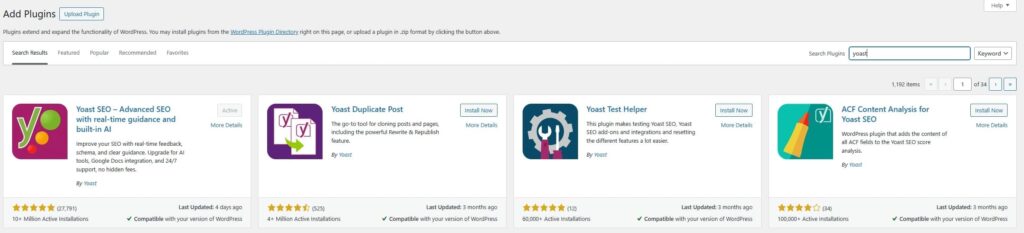
Once the plugin is active, WordPress will add SEO settings to your pages and posts.
How to Add Keywords in WordPress Using Yoast SEO
Adding keywords in WordPress with Yoast is very straightforward.
Open the page or post you want to optimise.
Scroll down below the content editor until you see the Yoast SEO section.
Here you will see a field called Focus Keyphrase.
This is where you enter the keyword you want the page to rank for.
For example, if your article is about adding keywords in WordPress, you might enter:
how to add keywords in wordpress
Once you enter the keyword, Yoast will analyse your page and provide suggestions on what you can improve.
It will check things like:
- whether the keyword appears in the title
- whether it appears in headings
- whether it appears in the content
- internal linking suggestions
- readability improvements
You don’t need every indicator to be green, but the tool is useful for spotting things you might have missed.
How to Add a Meta Description in WordPress
Adding a meta description is done in the same Yoast SEO panel.
Below the focus keyphrase field you will see an option called Meta description.
This is where you write the description that will appear in search results.
Try to keep it around 150 to 160 characters and include your main keyword naturally.
For example:
Learn how to add keywords and meta descriptions in WordPress using the Yoast SEO plugin with this simple step-by-step guide.
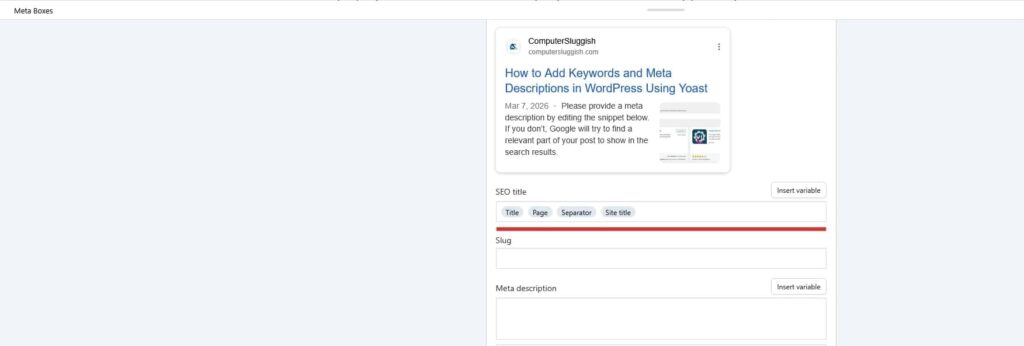
Yoast also shows a preview of how your page may appear in Google search results, which helps you adjust the text if needed.
How to Set a Focus Keyword in Yoast SEO
Setting a focus keyword in Yoast simply means choosing the main phrase your page should target.
Inside the Focus Keyphrase field, type the keyword you want to optimise for.
Yoast will then analyse your content and highlight suggestions such as:
- keyword in title
- keyword in headings
- keyword in the introduction
- keyword density
The important thing is to write content naturally. Try not to force keywords too many times just to satisfy the plugin.
Where Keywords Actually Matter in WordPress
Something I’ve noticed over the years is that many beginners focus too much on the plugin rather than the actual content.
Adding a keyword in Yoast doesn’t magically make a page rank.
The keyword should appear naturally in places like:
- the page title
- headings
- the URL
- the first paragraph
- throughout the content
Yoast simply helps guide you through these steps.
Checking Your SEO With a Website Crawler
As your website grows and you start publishing more content, it becomes useful to check how search engines actually see your site.
For example, pages may accidentally be published without meta descriptions or titles, or you might end up with duplicate metadata across different pages.
This is something I ran into quite often while building and improving websites.

Because of that, I actually created CrawlRhino SEO Crawler, which is a desktop tool that crawls websites and highlights technical SEO issues such as missing meta descriptions, titles, and other optimisation problems.
When you start working with larger websites, tools like this make it much easier to spot SEO problems that would otherwise be difficult to find manually.
Final Thoughts
Adding keywords and meta descriptions in WordPress using Yoast SEO is fairly simple once you know where the settings are located.
The key steps are installing the plugin, adding a focus keyword to your page, writing a clear meta description, and making sure your content is naturally optimised around your target keyword.
While plugins like Yoast can guide you through these tasks, the most important thing is still writing helpful content that answers the questions people are searching for.
As your site grows, reviewing your SEO setup and using tools that analyse your website structure can also help you identify issues and improve performance over time.