

Are you experiencing lag spikes, rubberbanding, or disconnects in Battlefield 6? Whether it’s constant high ping, packet loss, or random network errors, this guide covers every proven method to fix Battlefield 6 connection problems and improve online stability on PC.
Common Battlefield 6 Network Issues
You may notice:
- High ping or latency (delayed actions)
- Rubberbanding (snapping back after movement)
- Connection to game server lost
- Matchmaking failed or timed out
- Cannot connect to EA servers
These are typically caused by:
- Slow or unstable internet
- Incorrect network settings
- Overloaded local servers
- Background programs using bandwidth
- Firewall or NAT issues
How to Fix Battlefield 6 Lag and Connection Problems
1. Use a Wired Ethernet Connection (Not Wi-Fi)
Wi-Fi causes packet loss, ping spikes, and random disconnects—especially in fast-paced games like Battlefield.
- Plug your PC directly into your router/modem using an Ethernet cable
- Restart your router and modem afterward
- Avoid shared networks (streaming, downloads, video calls) while playing
This is the most effective fix for lag in any online shooter.
2. Restart Your Modem and Router
A simple reboot can refresh your IP, clear memory leaks, and resolve throttling:
- Unplug router and modem for 30 seconds
- Plug back in and wait for a stable connection
- Relaunch Battlefield 6 and check if lag improves
3. Check EA Server Status for Outages
Sometimes, it’s not you—it’s the servers.
- Visit: https://help.ea.com
- Or check DownDetector Battlefield 6
- Follow @BattlefieldComm on X (Twitter) for live updates
If servers are under heavy load or being updated, performance may suffer for all players.
4. Change Your DNS for Faster Server Response
Switching to a public DNS can reduce latency and connection errors.
Recommended DNS:
- Google DNS: 8.8.8.8 / 8.8.4.4
- Cloudflare DNS: 1.1.1.1 / 1.0.0.1
How to change DNS on Windows:
- Go to Control Panel > Network and Sharing Center
- Click your connection > Properties
- Select Internet Protocol Version 4 (TCP/IPv4) > Properties
- Use custom DNS and enter the addresses above
5. Close Bandwidth-Hungry Apps
Background downloads or streaming apps can choke your connection:
- Close Chrome, Netflix, YouTube, Spotify, etc.
- Pause Windows Updates and background downloads
- Use Task Manager to end unnecessary tasks
- Make sure no one else on your network is downloading large files
6. Turn Off In-Game Voice Chat (and External Apps)
Battlefield’s voice chat system can sometimes cause lag or connection instability.
- Go to Settings > Audio > Voice Chat and disable it
- Also close Discord, Zoom, or Skype if not needed
This frees up bandwidth and reduces data spikes.
7. Disable VPNs and Proxies (Unless Intentionally Using One)
If you’re using a VPN:
- Disable it and test your raw connection
- If you’re using a VPN to connect to another region, try switching to a different server or turning it off completely
Some VPNs increase latency or cause EA login issues.
8. Set NAT Type to Open (Console or PC)
Restricted NAT can limit your ability to connect to other players or servers.
On PC:
- Enable UPnP in your router settings
- Forward the correct ports for Battlefield 6:
- TCP: 80, 443, 9988, 17502, 20000-20100
- UDP: 3659, 14000-14016
Check your router manual or ISP support if you’re unsure how to do this.
9. Use a Gaming VPN (Optional)
If Battlefield 6 is laggy due to congested local routes, using a low-latency gaming VPN can reroute traffic through a cleaner path:
- Choose servers close to Battlefield’s regional servers
- Only use reputable VPNs (e.g., ExitLag, WTFast, NoPing)
Try this only if you’ve tested all other methods first.
10. Limit FPS to Reduce CPU/GPU Network Load
Oddly, high frame rates can sometimes cause network stutter:
- Go to Settings > Video > Limit FPS to 60 or 120
- Disable V-Sync
- Try lowering post-processing or background blur
This can smooth out gameplay and reduce input delay during connection spikes.
11. Use Gaming Optimization Software
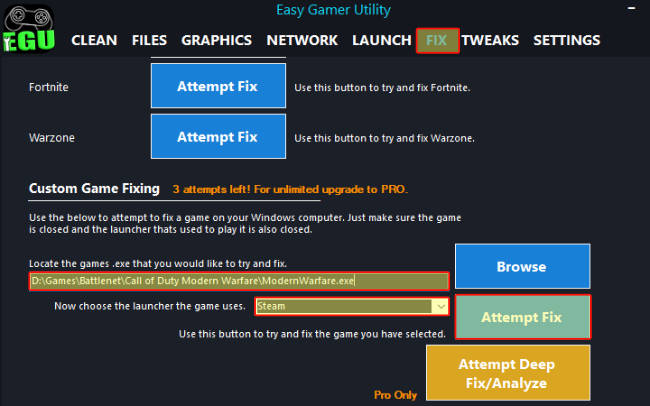
Such software can assist by cleaning cache and addressing game crashes, particularly by clearing the graphics card cache. Download Easy Gamer Utility optimization software for assistance.

Easy Gamer Utility also has a way to diagnose crashing problems with the new diagnose tab

12. Game-Specific Fixes
Consider using Easy Gamer utility software to directly address Legendary Tales crashes by selecting the game’s executable and attempting a fix through the software.
Download Easy Gamer Utility here
Related Terms Players Search For
These are common problems players type when looking for help:
- Battlefield 6 lag fix PC
- Battlefield 6 connection to server lost
- Battlefield 6 rubberbanding problem
- How to fix Battlefield 6 high ping
- Battlefield 6 keeps disconnecting
- Battlefield 6 stuttering online
- Battlefield 6 packet loss
- Battlefield 6 won’t connect to EA servers
- Battlefield 6 network lag issues
Final Tips
- Avoid peak hours (weekend evenings) if possible
- Restart the game if you’re stuck at “connecting to online services”
- Use Battlefield 6’s in-game network graph to track ping and packet loss (Settings > Gameplay > Advanced > Network Performance Graph)
If you’re still having connection issues after trying everything, consider contacting EA Support to see if there’s an account-specific problem.