

Is Battlefield 6 crashing on your PC during launch, in menus, or mid-game? You’re not alone—many players face random crashes, black screens, and desktop freezes. Whether it’s crashing on startup or during matches, this guide covers all the most effective fixes to help stabilize Battlefield 6 on Windows.
Common Reasons Battlefield 6 Crashes on PC
Understanding what’s causing the issue helps you fix it faster:
- Outdated GPU drivers or incompatible software
- Overlays (Steam, Discord, EA App) interfering
- Corrupt or missing game files
- Incorrect in-game settings or overclocking
- Background apps causing conflicts
- Antivirus or firewall blocking game files
How to Fix Battlefield 6 Crashing on PC
1. Update Your Graphics Drivers
Outdated or broken GPU drivers are the top cause of crashes.
- NVIDIA: Download Latest Driver
- AMD: Download Radeon Drivers
- Use clean install option if available
After installing, restart your PC and relaunch Battlefield 6.
2. Run Battlefield 6 as Administrator
Right-click your game shortcut or .exe file:
- Select Properties > Compatibility
- Check “Run this program as an administrator”
- Also try checking “Disable fullscreen optimizations”
This can resolve permission-related crashes or input issues.
3. Disable Overlays (Steam, Discord, EA App, NVIDIA)
Overlays can cause Battlefield 6 to crash unexpectedly:
- Steam: Settings > In-Game > Uncheck “Enable Steam Overlay”
- Discord: Settings > Game Overlay > Disable
- NVIDIA: GeForce Experience > Settings > In-Game Overlay > Off
- EA App: Settings > Application > In-Game Overlay > Off
Restart everything after disabling.
4. Verify Game Files (Steam / EA App)
Corrupted or missing files lead to crashes or loading failures.
On Steam:
- Right-click Battlefield 6 > Properties > Local Files > Verify integrity of game files
On EA App:
- Click on the game > Click the three dots > Repair
Let the check finish and restart your system before launching the game.
5. Lower In-Game Graphics Settings
High or ultra settings may overwhelm your system, especially after new patches.
- Set Graphics Quality to Medium or Low
- Disable Ray Tracing, V-Sync, and DLSS temporarily
- Cap FPS to 60 and set resolution scaling to 100%
This reduces GPU/CPU load and often stops mid-game crashes.
6. Disable Background Apps
Some software causes Battlefield 6 to crash or freeze:
- Close MSI Afterburner, Razer Cortex, Logitech software, RGB tools, etc.
- Use Task Manager to close unnecessary apps
- Disable browser tabs or video streaming while gaming
This frees up RAM and avoids conflicts.
7. Turn Off Overclocking (CPU/GPU/RAM)
Even a slight overclock can make Battlefield 6 unstable:
- Revert all overclocked components to stock speeds
- Use BIOS or tuning software to reset settings
- Unstable overclocks are often behind random crashes and freezes
8. Add Battlefield 6 to Your Antivirus Exclusion List
Security software may block or sandbox game files:
- Open your antivirus program
- Add the Battlefield 6 folder and launcher (EA App/Steam) to the exclusion list
- Also add these to your Windows Defender exclusions under “Virus & Threat Protection > Manage Settings > Exclusions”
9. Reinstall DirectX, Visual C++ Redistributables, and .NET
Missing or corrupt dependencies can crash games:
- Download and install:
Restart your PC after installing.
10. Reinstall Battlefield 6 (Last Resort)
If nothing works:
- Uninstall Battlefield 6
- Restart your PC
- Reinstall the game via EA App or Steam
Install it on an SSD if possible for better performance and fewer load errors.
11. Use Gaming Optimization Software
Such software can assist by cleaning cache and addressing game crashes, particularly by clearing the graphics card cache. Download Easy Gamer Utility optimization software for assistance.

12. Clear DirectX Cache
Use Easy gamer utility software to clear the DirectX Shader cache and remove corrupted files.

Download Easy Gamer Utility here
13. Game-Specific Fixes
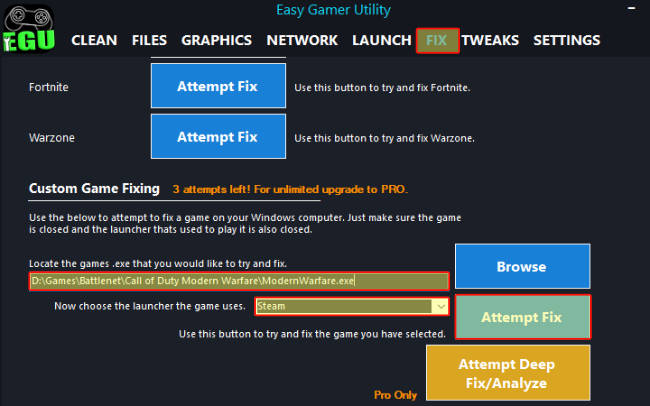
Consider using Easy Gamer utility software to directly address Legendary Tales crashes by selecting the game’s executable and attempting a fix through the software.
Download Easy Gamer Utility here
Easy Gamer Utility also has a way to diagnose crashing problems with the new diagnose tab

Optional: Check Windows Event Viewer for Crash Logs
To find out exactly why Battlefield 6 is crashing:
- Press
Win + X> Event Viewer > Windows Logs > Application - Look for “Battlefield6.exe” crash reports and Faulting Module Name
This can point you to a specific issue (like a driver DLL or background software).
Common Search Phrases Related to This Issue
If you’re looking for more help online, here are the terms other players often search for:
- Battlefield 6 crashing on startup PC
- Battlefield 6 crash to desktop
- Battlefield 6 freezing mid game
- Battlefield 6 crash fix Windows 10 / 11
- Battlefield 6 random crash fix
- Battlefield 6 not launching
- Battlefield 6 crash DirectX fix
- Battlefield 6 keeps closing by itself
Final Thoughts
Crashing issues in Battlefield 6 on PC can be caused by a wide range of system or software problems—but most are fixable. Start with driver updates and overlays, then move on to game file repair and system settings. If you’re still stuck, a clean reinstall or support ticket may be necessary.
Got it working? Share this with friends who are having the same issue—and bookmark it in case the crashes come back after future updates.