
Fix Crimson Desert Freezing on PC
If Crimson Desert keeps freezing on your PC, whether it’s random stutters, the game locking up during gameplay, or even completely not responding, you’re definitely not the only one dealing with it. Freezing issues can be just as annoying as crashes, especially when the game runs fine one minute and then suddenly locks up the next.
You might notice:
- The game freezing for a few seconds then continuing
- Full game lockups where you have to close it
- Freezing during loading screens
- Stuttering that turns into a freeze
- The game becoming “Not Responding”
Most of the time, freezing is caused by system performance issues, cache problems, or background conflicts rather than one specific error.
Below are the best things you can try to fix it.
Use Easy Gamer Utility to Help Quickly
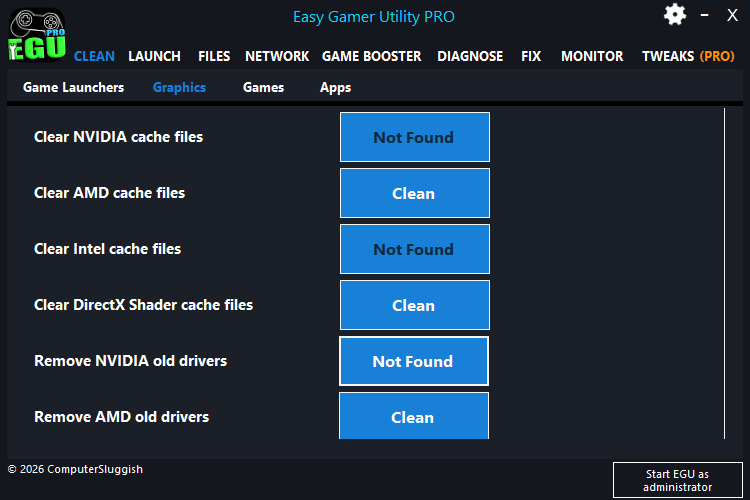
Instead of manually messing around with files, you can use Easy Gamer Utility for FREE which is made by us ComputerSluggish to clean things properly and quickly.
I made Easy Gamer Utility so you do not have to try doing multiple methods to try and figure out the problem Easy Gamer Utility does this for you.
1. Lower Graphics Settings (Reduce Load)
If your system is being pushed too hard, it can cause freezing instead of just low FPS. This usually happens during intense scenes or when loading new areas.
Lowering a few settings can help stabilise performance:
- Shadows
- Effects
- View Distance
- Post Processing
After changing settings, restart the game and test again. Even small changes can make a noticeable difference.
2. Use Easy Gamer Utility (Custom Game Fix)
If you want a quicker way to try and fix freezing issues, you can use Easy Gamer Utility (made by us ComputerSluggish).

It can help clear problem files, fix conflicts, and apply system tweaks automatically.
How to use it:
- Open Easy Gamer Utility
- Go to the Custom Game Fix section
- Put the path in for the Crimson Desert .exe
- Click Attempt Fix
It will run checks and try to fix issues that could be causing the game to freeze.
Read more about Easy Gamer Utility here
3. Clear Graphics Cache (Important)
Freezing can often be caused by corrupted shader or GPU cache files, especially after updates.
Using Easy Gamer Utility, you can:
- Clear DirectX shader cache
- Clear NVIDIA / AMD / Intel cache
This helps remove broken data and allows the game to rebuild fresh files, which can reduce stuttering and freezing.
4. Close Background Applications
Too many background apps can cause freezing by using up CPU, RAM, or disk resources.
Before launching the game, close:
- Browsers
- Discord (or disable overlay)
- Recording software
- Other heavy apps
Use Task Manager (Ctrl + Shift + Esc) to check what’s running.
5. Install Windows Updates
Outdated Windows versions can cause performance issues and freezing in newer games.

To update:
- Open Settings
- Go to Windows Update
- Click Check for updates
- Install everything available
Restart your PC after updating.
6. Check Your Storage Drive
If the game is installed on a slow or struggling drive, it can cause freezing, especially during loading.
- SSD is recommended
- Make sure you have enough free space
- Avoid installing on a nearly full drive
If possible, move the game to a faster drive.
7. Monitor CPU & RAM Usage
Freezing can happen if your system runs out of resources.
- High CPU usage can cause stutters and freezes
- Low available RAM can cause the game to hang
Try closing background apps or lowering settings to reduce load.
8. Disable Overlays
Overlays can sometimes cause freezing or instability.

Disable:
- Steam Overlay
- Discord Overlay
- NVIDIA / AMD overlays
Restart the game after turning them off.
9. Update Your Graphics Drivers
Drivers can affect stability just as much as performance.
Make sure you’re on the latest version:
- NVIDIA → GeForce Experience
- AMD → Adrenalin Software
- Intel → Driver Assistant
Restart your PC after updating.
10. Restart Your PC
It sounds basic, but it helps more than people think.
Restarting clears:
- Temporary system issues
- Stuck processes
- Memory problems
After restarting, launch the game again and see if freezing improves.
Watch: How To Fix Crimson Desert Issues on PC
If you’re still having issues with Crimson Desert, the video below walks you through the most effective fixes step-by-step. It covers common problems like the game not launching, crashing on startup, and other errors, along with the exact settings and tools you can use to get it running properly. Follow along with the video and you should be able to fix most issues without having to try loads of different methods yourself 👍
Final Thoughts
Freezing in Crimson Desert is usually caused by performance limits, cache issues, or background conflicts rather than anything serious.
The most effective fixes tend to be lowering graphics settings, clearing graphics cache, closing background apps, and using Easy Gamer Utility to apply quick fixes and system optimisations.
Work through the steps above and you should see fewer freezes and a much smoother experience.