
Fix Crimson Desert “Graphics Device Is Currently Not Supported” Error
If you’re trying to launch Crimson Desert and get hit with the message “Graphics device is currently not supported”, it can be pretty confusing. Especially if your PC should be able to run the game without any issues.
This error usually pops up right when launching the game, and in most cases it’s not that your GPU is completely unsupported — it’s more likely something like drivers, settings, or system conflicts causing the game to think it is.
It’s a fairly common problem with newer games, and thankfully there are a few things you can try that often fix it.
1. Update Your Graphics Drivers
First thing to check — your GPU drivers.
If they’re outdated or slightly broken, the game can fail to recognise your graphics card properly and throw the graphics device not supported error.
Update your drivers here:
- NVIDIA → GeForce Experience or official website
- AMD → Adrenalin Software
- Intel → Driver & Support Assistant
Once updated, restart your PC before launching the game again.
2. Make Sure Your GPU Supports DirectX 11 / 12
Crimson Desert requires a fairly modern graphics card.
If your GPU doesn’t support DirectX 11 or DirectX 12, the game may refuse to launch.
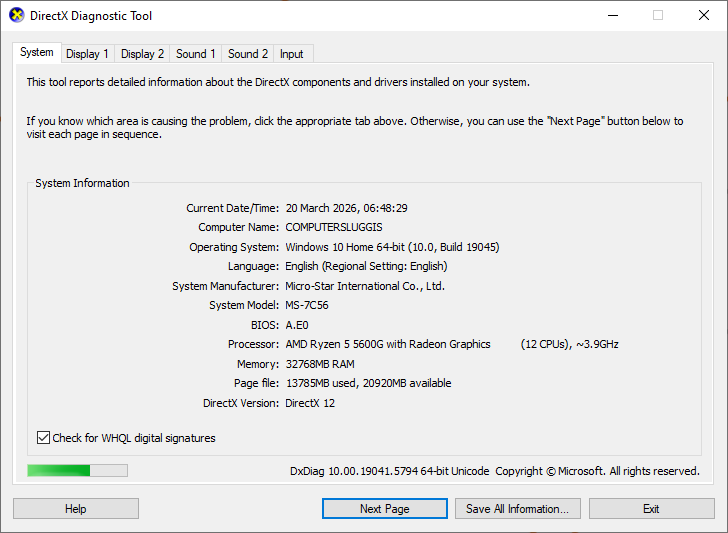
To check:
- Press Win + R
- Type
dxdiag - Press Enter
Look under Display → Feature Levels and make sure your GPU supports DX11 or higher.
3. Force the Game to Use DirectX 11
Sometimes the issue is actually with DirectX 12.
Switching to DX11 can fix compatibility problems:
- Open Steam
- Right-click Crimson Desert
- Click Properties
- In Launch Options, type:
-dx11
This can help the game properly detect your GPU.
4. Verify Game Files in Steam
If files didn’t install properly, the game might fail to recognise hardware correctly.

To verify:
- Open Steam
- Go to Library
- Right-click Crimson Desert
- Properties → Installed Files
- Click Verify integrity of game files
This will fix any broken or missing files.
5. Use Easy Gamer Utility to Clear Graphics Cache
One thing that can cause this error (that a lot of people overlook) is corrupted graphics cache.
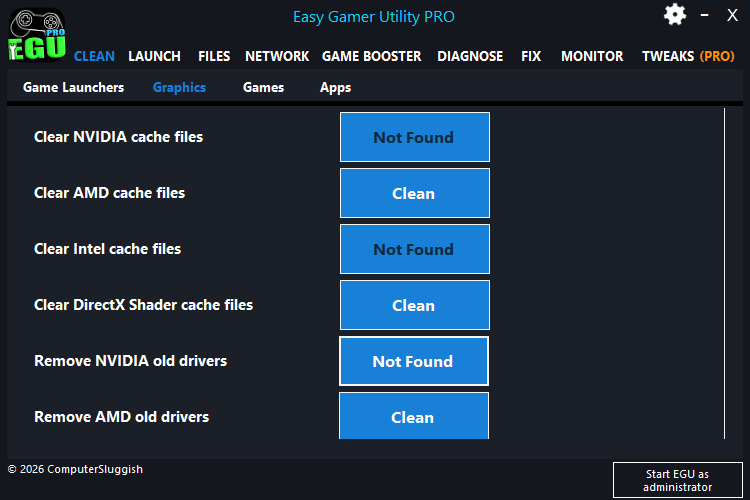
Instead of clearing everything manually, you can use Easy Gamer Utility a tool I made to help out all gamers.
From the Graphics section, you can:
- Clear NVIDIA cache files
- Clear AMD cache files
- Clear Intel cache files
- Clear DirectX shader cache
Download our tool Easy Gamer Utility here
Old or broken cache can make the game think your GPU isn’t supported when it actually is.
6. Remove Old GPU Drivers (Clean Install)
If you’ve updated drivers multiple times, leftover files from older versions can cause conflicts.
Using EGU for clearing old cache files or doing a clean install of your drivers can help:
- Remove old NVIDIA / AMD driver files
- Reinstall fresh drivers
This can fix detection issues with newer games.
7. Check You’re Using the Correct GPU
If you’re on a laptop or a system with integrated graphics, the game might be trying to run on the wrong GPU.
Make sure it’s using your main GPU:
- NVIDIA → Set preferred GPU in NVIDIA Control Panel
- AMD → Set High Performance GPU in Radeon settings
This is a common cause of the graphics device not supported error.
8. Install Windows Updates
Outdated Windows versions can cause compatibility problems with newer GPUs and APIs.

To update:
- Go to Settings → Windows Update
- Click Check for updates
- Install everything available
Watch: How To Fix Crimson Desert Issues on PC
If you’re still having issues with Crimson Desert, the video below walks you through the most effective fixes step-by-step. It covers common problems like the game not launching, crashing on startup, and other errors, along with the exact settings and tools you can use to get it running properly. Follow along with the video and you should be able to fix most issues without having to try loads of different methods yourself 👍
Final Thoughts
The “Graphics device is currently not supported” error in Crimson Desert usually isn’t as serious as it sounds. Most of the time it’s caused by outdated drivers, wrong DirectX settings, or cached files confusing the game.
The fixes that tend to work best are:
- Updating your GPU drivers
- Forcing DirectX 11
- Verifying game files
- Clearing graphics cache with Easy Gamer Utility
- Making sure the correct GPU is being used
Once you go through these, the game should recognise your system properly and launch without that error.