
How To Fix Crimson Desert Graphics Issues
If Crimson Desert doesn’t look right on your PC maybe textures look blurry, grainy, or just overall bad it can completely ruin the experience. You load into the game expecting it to look great, but instead things look washed out, low quality, or glitchy even on decent settings.
A lot of players run into this where textures don’t load properly, shadows flicker, or the game just looks off. Sometimes it even feels like the game is stuck on low settings when it isn’t. The annoying part is this kind of problem can come from a few different places, not just one thing.
Most of the time it’s related to graphics settings, drivers, cache files, or DirectX not behaving properly. The good thing is there are a number of things you can try that usually sort it out.
Use Easy Gamer Utility to Help Quickly
Instead of manually messing around with files, you can use Easy Gamer Utility for FREE which is made by us ComputerSluggish to clean things properly and quickly.
I made Easy Gamer Utility so you do not have to try doing multiple methods to try and figure out the problem Easy Gamer Utility does this for you.
Read more about Easy Gamer Utility here
1. Adjust Your Graphics Settings (Higher OR Lower)
Graphics settings don’t always behave how you expect, especially in newer games. If textures look bad or low quality, it doesn’t always mean your settings are too high sometimes it’s actually because they’re too low or not loading correctly.
Try increasing Texture Quality first, as low textures can make everything look blurry or muddy. If your system is struggling though, lowering things like shadows, effects, and post-processing can help stabilise how the game renders.
What to do:
- Open the in-game settings
- Increase Texture Quality
- Lower Shadows / Effects if needed
- Apply changes and restart the game
It’s worth testing both higher and lower settings to see what actually fixes the issue on your system.
2. Use FSR / Upscaling Properly
Upscaling can help performance, but it can also make the game look worse if it’s set too aggressively. Grainy visuals, blur, or weird texture quality can often come from FSR rather than the game itself.
If things look off, try switching to a higher quality mode or turning it off completely to compare.
What to do:
- Go to graphics settings
- Find FSR or upscaling option
- Set it to Quality (or turn it off)
- Relaunch the game and test
This can instantly improve how sharp and clean the game looks.
3. Update Your Graphics Drivers
Drivers play a huge role in how games render. If they’re outdated or slightly broken, you can get all sorts of issues like bad graphics, flickering, or textures not loading properly.
Even if your drivers aren’t that old, newer updates often include fixes specifically for new games.
What to do:
- Open GeForce Experience / AMD Adrenalin / Intel Assistant
- Check for updates
- Install the latest driver
- Restart your PC
After restarting, launch the game again and check if visuals improve.
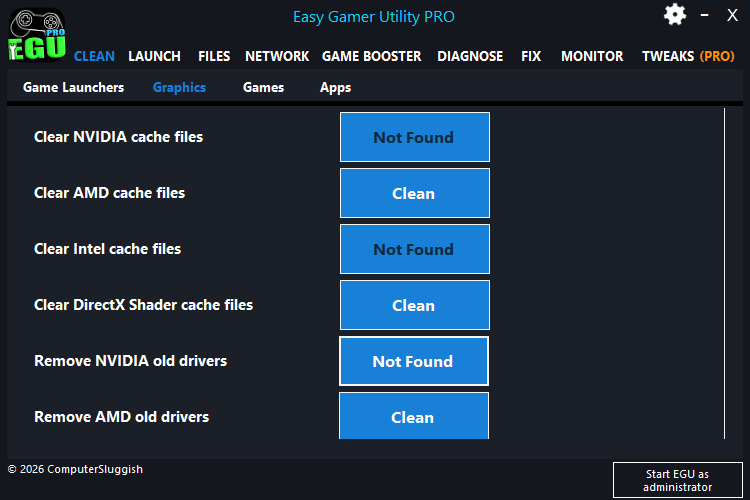
4. Clear Graphics Cache Using Easy Gamer Utility
Graphics cache is a big one that a lot of people miss. Over time, shader and GPU cache files can become corrupted, which leads to grainy textures, bad graphics, or things just not rendering correctly.
Instead of clearing everything manually, you can use Easy Gamer Utility (made by us ComputerSluggish) to do it quickly.
What to do:
- Open Easy Gamer Utility
- Go to the Graphics section
- Select options like clearing DirectX cache, NVIDIA / AMD / Intel cache
- Run the clean-up
Once done, launch the game again. This forces the game to rebuild fresh graphics data, which often fixes visual problems straight away.
Read more about Easy Gamer Utility here
5. Repair / Reinstall DirectX
If rendering is glitchy or textures look wrong, DirectX could be part of the problem. A broken or outdated DirectX setup can cause the game to display things incorrectly.
Reinstalling or repairing DirectX can fix missing or damaged files that affect how graphics are handled.
What to do:
- Download the DirectX End-User Runtime from Microsoft
- Run the installer
- Let it repair any issues
- Restart your PC
After that, try launching the game again.
6. Verify Game Files (Steam)
Sometimes the issue isn’t your system at all — it’s the game files. If textures or assets didn’t install properly, the game won’t display things correctly.

Verifying files makes sure everything is intact and replaces anything broken.
What to do:
- Open Steam
- Go to your Library
- Right-click Crimson Desert
- Click Properties → Installed Files
- Select Verify integrity of game files
Wait for it to finish, then relaunch the game.
7. Check VRAM Usage
If your graphics card is running out of VRAM, textures won’t load properly and can look blurry or low quality. This is especially noticeable on higher settings or resolutions.
Reducing VRAM usage can help stabilise how textures load.
What to do:
- Lower Texture Quality slightly
- Reduce resolution if needed
- Close background apps using GPU memory
This can stop textures from loading in late or looking broken.
8. Disable Overlays
Overlays can sometimes interfere with how the game renders, especially in newer titles. This can cause weird visual glitches or unstable textures.

Turning them off is quick and worth testing.
What to do:
- Disable Steam Overlay
- Disable Discord Overlay
- Disable NVIDIA / AMD overlays
- Restart the game
Check if visuals look more stable after.
9. Use Fullscreen Mode
Running in borderless or windowed mode can sometimes cause rendering issues or make the game look worse than it should.
Switching to fullscreen can improve how the game displays.
What to do:
- Open in-game settings
- Change display mode to Fullscreen
- Apply settings and restart the game
This can help improve overall visual clarity.
10. Reset GPU Overclock (If Any)
If your GPU is overclocked, even slightly, it can cause bad graphics, flickering, or unstable textures. This is more common than people think, especially with factory overclocks.
Resetting to default settings can help rule this out.
What to do:
- Open your GPU software (MSI Afterburner, etc.)
- Reset clock speeds to default
- Apply changes
- Relaunch the game
If the issue disappears, the overclock was likely the cause.
Watch: How To Fix Crimson Desert Issues on PC
If you’re still having issues with Crimson Desert, the video below walks you through the most effective fixes step-by-step. It covers common problems like the game not launching, crashing on startup, and other errors, along with the exact settings and tools you can use to get it running properly. Follow along with the video and you should be able to fix most issues without having to try loads of different methods yourself 👍
Final Thoughts
Graphics issues in Crimson Desert like grainy textures or generally bad graphics are usually caused by settings, cache, drivers, or system conflicts rather than anything serious.
The main things that tend to fix it are adjusting graphics settings properly, updating drivers, clearing graphics cache using Easy Gamer Utility, repairing DirectX, and making sure your game files are intact.
It might take a bit of testing, but once you go through these steps, the game should start looking the way it’s meant to without all the visual problems.