

Are you seeing the error “DirectX function ‘CoInitialize()’ failed with HR” when launching or playing games like Battlefield 6, Call of Duty, or other DirectX 12 titles on your AMD GPU system?
This frustrating error usually appears with a message like:
“DirectX function ‘CoInitialize()’ failed with HRESULT 0x800401F0”
Description: “CoInitialize has not been called.”
This error often occurs before the game fully loads or after changing graphics settings. It’s linked to DirectX initialization failure, most commonly triggered by driver conflicts, corrupted system files, or registry issues — especially with AMD Radeon setups.
Why This Happens (Technical Breakdown)
The CoInitialize() function is a Windows COM (Component Object Model) call that prepares your system for graphics rendering tasks using DirectX. If this call fails:
- The game can’t initialize DirectX features
- Rendering context can’t be created
- The engine exits or crashes with an error
This usually means:
- DirectX files are corrupted or missing
- Faulty or outdated AMD GPU drivers
- A third-party overlay or program is interfering
- Corrupt Windows system/registry files
- Incompatible AMD Adrenalin settings or features
How to Fix “CoInitialize() Failed with HR” on AMD GPUs
1. Reinstall DirectX Completely
Even on Windows 11, older DirectX components can become corrupted.
Steps:
- Download the DirectX End-User Runtime Web Installer from Microsoft:
👉 https://www.microsoft.com/en-us/download/details.aspx?id=35 - Install and restart your PC
- Try launching the game again
2. Do a Clean Install of Your AMD GPU Drivers
Faulty drivers are one of the most common causes of this error on Radeon systems.
Step-by-step:
- Use Display Driver Uninstaller (DDU):
- Download from here: https://www.guru3d.com/download/display-driver-uninstaller-download/
- Run in Safe Mode to fully remove AMD drivers
- Download and install the latest WHQL AMD drivers:
👉 https://www.amd.com/en/support - Use the “Factory Reset” option during install if available
- Reboot and test the game
Avoid using “Optional” (beta) drivers unless you’re testing a specific fix.
🛠 3. Use Easy Gamer Utility to Auto-Fix DX + Driver Errors
If you want a faster way to handle registry, DirectX, and driver-related problems, try Easy Gamer Utility a program we made for gamers its a lightweight tool designed to auto-repair common PC gaming issues.
🔽 How to Use:
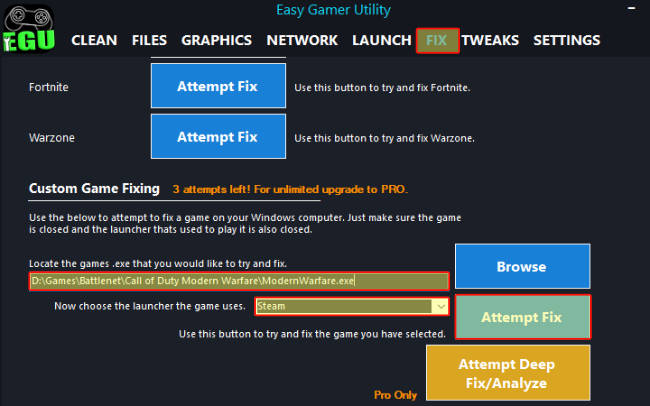
- Download Easy Gamer Utility here
- Open the program and select the game giving you the error
- Click “Fix Tab” and then custom game fixing
- Now choose the battlefield .exe under browe
- Now click Attempt Fix Button
4. Disable Overlays and Background Apps
Some overlays and monitoring tools interfere with DirectX and COM calls.
- Close or disable:
- Discord Overlay
- AMD Radeon Overlay
- MSI Afterburner
- Razer Cortex
- NVIDIA GeForce Experience (if hybrid setup)
Also disable Xbox Game Bar:
Settings > Gaming > Xbox Game Bar > Turn off
5. Clear AMD Shader Cache
Corrupted cache can break rendering initialization.
Steps:
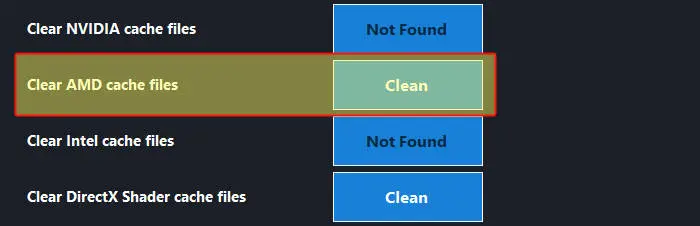
- Download Easy Gamer Utility our program we made
- Now click on the Clean Tab then Graphics Tab
- Now click on clear AMD cache files
6. Run the Game as Administrator with Compatibility Mode
Games may need elevated permissions to initialize graphics:
- Right-click on the game
.exe> Properties - Under Compatibility:
- Check “Run as administrator”
- (Optional) Set “Compatibility Mode for Windows 10”
- Apply and relaunch
7. Check for Missing Windows Components
Missing or damaged Windows files can cause DirectX errors.
Run System File Checker:
- Open Command Prompt as Admin
- Type:
sfc /scannow - Wait for it to finish (may take 10–15 mins)
Also run:
DISM /Online /Cleanup-Image /RestoreHealth
Restart your PC afterward.
8. Use Easy Gamer Utility To Clear DirectX
Use Easy gamer utility software to clear the DirectX Shader cache and remove corrupted files.

Download Easy Gamer Utility here
Common Games Affected by This Error
- Battlefield 6
- Call of Duty: MW2 / Warzone
- Star Wars Jedi: Survivor
- Resident Evil Remakes
- Unreal Engine 4/5 games
- Any DX12-enabled title using AMD GPUs
Related Error Codes
- HRESULT 0x800401F0 — CoInitialize not called
- DXGI_ERROR_DEVICE_REMOVED
- DirectX Initialization Failed
- “Failed to create rendering context”
Final Notes
If you’re seeing the CoInitialize() failed error with an AMD GPU, your best path to fixing it is:
- Reinstall DirectX and AMD drivers from scratch
- Use Easy Gamer Utility to simplify the repair process
- Disable overlays and clear AMD caches
- Run diagnostics (SFC, DISM) for corrupt Windows files
With these steps, you should be able to eliminate the error and get your game running again.