
How to Fix FiveM Infinite Loading on Windows 10 & Windows 11
If FiveM gets stuck on an infinite loading screen when joining a server, you’re not alone. Many players experience FiveM loading forever, freezing on “Connecting”, or staying stuck while downloading server content without ever joining the game.
Infinite loading problems usually aren’t caused by the server itself. In most cases, the issue comes from Windows settings, graphics configuration, cached files, or system resources preventing FiveM from fully loading GTA V components.
This guide covers the most effective ways to fix the FiveM infinite loading issue on Windows 10 and Windows 11.
Why FiveM Gets Stuck on Infinite Loading
FiveM loads several systems at once when connecting to a server:
- GTA V assets
- Server scripts and custom content
- Network authentication
- Graphics initialisation
- Local cache files
If any part of this process is interrupted, the loading screen can continue indefinitely.
Common causes include:
- GPU not assigned correctly in Windows
- Corrupted cache files
- Background programs slowing loading
- Graphics driver conflicts
- Network delays
- Windows power or performance settings
Set FiveM to High Performance in Windows Graphics Settings (Important Fix)
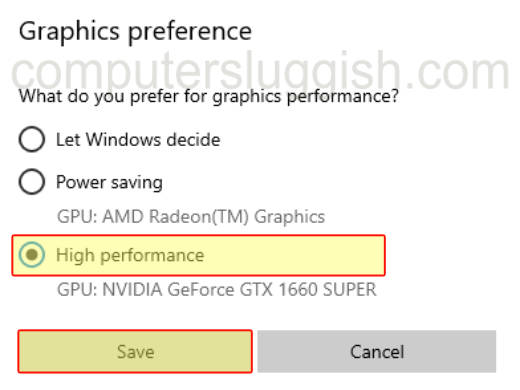
One of the most effective fixes is forcing Windows to run FiveM using your high-performance GPU.
Windows sometimes assigns games to power-saving graphics automatically, especially on laptops or systems with integrated graphics.
On Windows 10 and Windows 11:
- Open Settings
- Go to System → Display
- Select Graphics settings (or Graphics under Related Settings)
- Click Browse
- Navigate to your FiveM installation folder and select FiveM.exe
- Click Options
- Choose High Performance
- Save changes
Restart FiveM and try joining a server again.
This ensures the game uses your dedicated GPU instead of integrated graphics, which often resolves infinite loading issues immediately.
Clear FiveM Cache Files
Cache corruption is one of the biggest reasons FiveM never finishes loading.
- Press Windows Key + R
- Type:
%localappdata%
- Open the FiveM folder
- Navigate to FiveM Application Data → data
- Delete:
- cache
- server-cache
- server-cache-priv
Do not remove the game folder.
Launch FiveM again and reconnect.
Close Background Applications Before Launching FiveM
FiveM downloads and processes large amounts of server data during loading. If your system is already busy running background software, loading may stall or freeze.
Programs that commonly cause problems include:
- Web browsers
- Update services
- Recording software
- RGB control tools
- Game launchers running updates
Instead of manually closing everything each time, many players prepare their PC using Easy Gamer Utility before launching FiveM. The program includes multiple optimisation options that reduce background processes, free RAM, and stabilise CPU usage so games can load properly.
Reducing system load often allows FiveM to complete loading where it previously stayed stuck indefinitely.
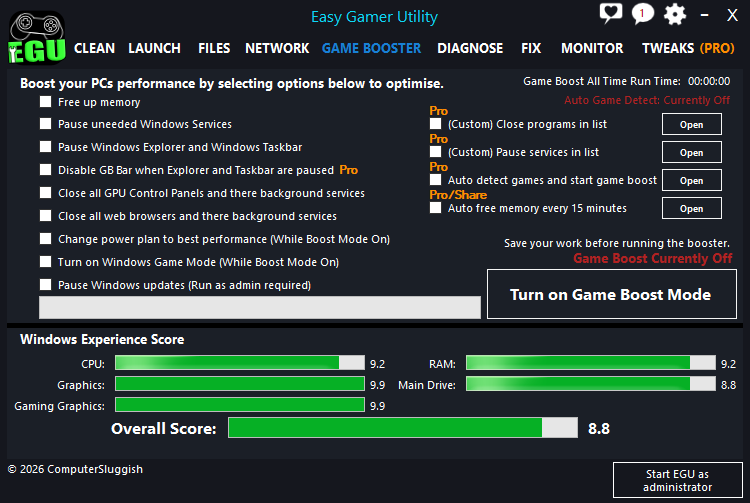
Easy Gamer Utility can be downloaded here:
https://computersluggish.com/downloads/easy-gamer-utility/
Disable Overlays
Overlays can interrupt loading because they hook into the game while assets are being initialised.
Disable temporarily:
- Discord Overlay
- Steam Overlay
- NVIDIA Overlay
- Xbox Game Bar
Restart FiveM afterward.
Verify GTA V Installation

FiveM depends on GTA V files working correctly.
Open GTA V normally through Steam, Epic Games, or Rockstar Launcher and confirm it loads to the main menu.
If GTA V fails to load or updates are pending, FiveM may remain stuck loading forever.
Update Graphics Drivers
Graphics drivers directly affect how FiveM loads textures and shaders.
Install the latest drivers using:
- NVIDIA GeForce Experience
- AMD Adrenalin Software
Restart your PC after updating.
Change Power Mode to Best Performance
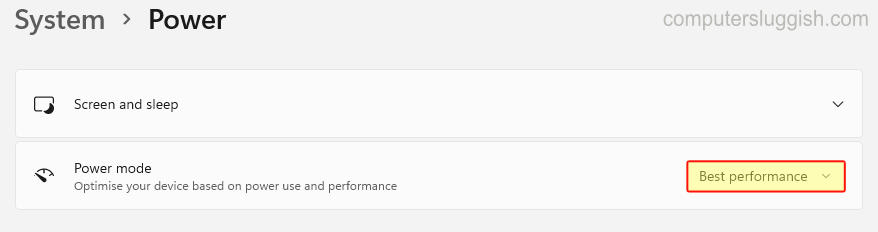
Windows power settings can limit CPU and GPU performance during loading.
- Open Settings
- Go to Power & Battery
- Set Power Mode to Best Performance
This prevents Windows from throttling performance during server loading.
Flush DNS Cache
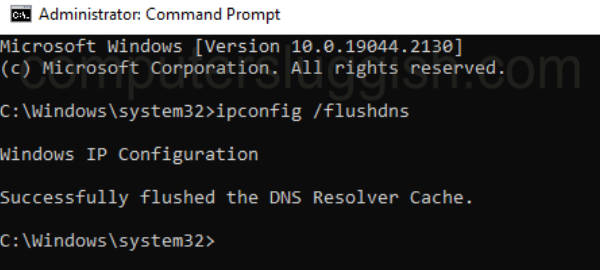
If loading stalls during connection stages, network cache problems may be responsible.
Open Command Prompt as Administrator and run:
ipconfig /flushdns
Restart your PC afterward.
Run FiveM as Administrator

Permission issues sometimes prevent files from loading correctly.
Right-click FiveM → Run as administrator.
You can set this permanently in Compatibility settings.
Update Windows Fully

Both Windows 10 and Windows 11 updates include gaming and networking improvements.
Go to Settings → Windows Update → Check for Updates and install everything available.
Restart your PC once updates finish.
Why Infinite Loading Often Comes From System Resource Conflicts
Many players assume infinite loading means a slow internet connection, but often the real issue is Windows running too many background processes while FiveM loads server content.
When CPU or disk usage spikes during loading, FiveM may never finish initialising assets. Preparing your PC before gaming reduces these conflicts and allows loading to complete normally.
Easy Gamer Utility helps automate this process with gaming optimisation features designed to create a cleaner environment before launching games and mods like FiveM.
Final Thoughts
If FiveM is stuck on infinite loading, the issue is usually caused by graphics configuration, cache corruption, or background system activity.
The fixes that work most often are:
- Setting FiveM to High Performance graphics mode
- Clearing cache files
- Updating drivers
- Disabling overlays
- Reducing background processes before launching
Once your system is properly configured, FiveM should load into servers normally without getting stuck.
If you frequently run into loading or startup problems across multiple games, preparing Windows before gaming sessions using Easy Gamer Utility can help prevent these issues and improve overall stability.
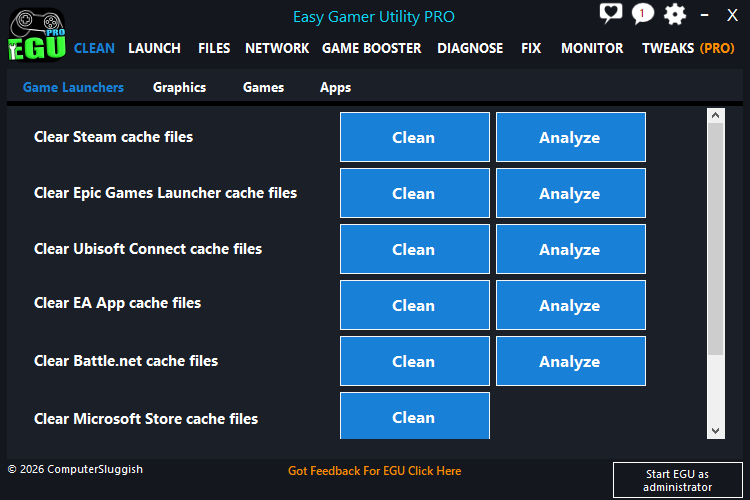
Download Easy Gamer Utility here:
https://computersluggish.com/downloads/easy-gamer-utility/