

inZOI is a visually stunning life sim, but some players have reported problems like blurry textures, screen flickering, low FPS, stuttering, or graphical glitches. If you’re having trouble with how the game looks or performs visually, this guide will walk you through the most effective ways to fix and optimize graphics on Windows 10 or 11.
🛠️ Common Graphics Issues in inZOI
- Blurry or low-resolution textures
- Flickering shadows or lighting glitches
- Screen tearing
- FPS drops or stuttering
- Black screens or blank UI
🔧 Step-by-Step inZOI graphics Fixes
Use the below steps to fix inZoi graphics problems!
1. Update Your Graphics Drivers
Make sure you’re using the latest drivers from NVIDIA or AMD:
Use a clean install option during the driver installation to remove remnants of old drivers.
2. Use the Correct GPU (Laptop Users)
If you have a laptop with both integrated and dedicated graphics:
- Right-click desktop > NVIDIA Control Panel (or AMD equivalent)
- Manage 3D Settings > Program Settings > Add inZOI
- Set preferred GPU to “High-performance NVIDIA processor” or your AMD GPU
3. Check In-Game Graphics Settings
Sometimes default settings may not match your hardware:
- Open inZOI > Settings > Graphics
- Set Resolution to match your monitor (e.g., 1920×1080)
- Disable Motion Blur, V-Sync, and Depth of Field if you experience blurry visuals
- Lower settings like Shadows, Reflections, and Post-Processing if FPS is low
4. Disable Fullscreen Optimizations
This can fix stuttering or low FPS:
- Navigate to the game’s install folder
- Right-click
inZOI.exe> Properties > Compatibility - Check “Disable fullscreen optimizations”
5. Enable or Force V-Sync / G-Sync / FreeSync
If you’re getting screen tearing:
- Turn on V-Sync in game settings or through your GPU control panel
- Make sure G-Sync or FreeSync is enabled (if supported by your monitor and GPU)
6. Adjust Windows Graphics Settings
Optimize Windows to give the game GPU priority:
- Windows Settings > System > Display > Graphics
- Browse and add
inZOI.exe - Set it to “High performance”
7. Set Power Plan to Maximum Performance
Your system may throttle performance:
- Control Panel > Power Options > Select “High performance” or “Ultimate performance”
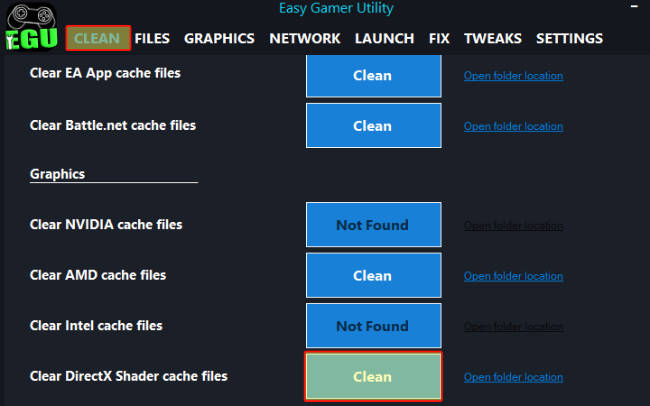
8. Use Easy Gamer Utility
Our free program Easy Gamer Utility includes tweaks and cleaning tools to help all gamers:
- Reset graphics settings
- Clear shader cache
- Clear DirectX Shader cache
- Optimize GPU performance with one click
9. Reinstall DirectX and Visual C++ Redistributables
Corrupted libraries can cause rendering issues:
10. Lower Resolution Temporarily
If the game still stutters badly, try playing at a lower resolution temporarily to test if performance improves. If it does, your GPU may be overloaded at higher settings.
🧪 Bonus: Advanced Tweaks
- NVIDIA Control Panel / AMD Adrenalin Tweaks:
- Set Texture Filtering to “High Performance”
- Enable Triple Buffering
- Force Anisotropic Filtering to 8x (if blurry textures persist)
- Disable Background Apps:
- Use Task Manager to close RAM/CPU-heavy background tasks while gaming
- Check for Windows Updates:
- A recent update may improve DirectX or GPU compatibility
✅ Conclusion
Graphics issues can really hurt immersion in a game like inZOI, which thrives on visual detail and realism. Thankfully, most of these problems can be fixed with the right driver updates, in-game settings adjustments, and system optimizations. By following this guide, you should be able to enjoy a smoother and more visually stunning experience in inZOI.
Still having trouble? Don’t forget to check community forums or wait for official patches—developers are often quick to fix major visual bugs after launch.