

inZOI is an immersive life simulation game developed by KRAFTON, offering players a rich sandbox world where they can create and control detailed virtual lives with stunning visuals and deep gameplay mechanics. Whether you’re designing cities, managing characters, or exploring a dynamic, reactive world, inZOI promises a next-gen simulation experience that blends realism with creativity.
However, some players on Windows 10 and 11 have reported experiencing crashes—ranging from random mid-game shutdowns to startup failures. If you’re one of them, you’re not alone.
This guide is here to help you troubleshoot and fix those crashing problems. Whether it’s an issue with your system settings, corrupted game files, or just a compatibility hiccup, we’ll walk you through the most effective steps—from basic to advanced—to get inZOI running smoothly again. Let’s get you back to building your perfect world without the interruptions.
🔧 How to Fix inZOI Crashing on Windows 10/11
Follow the below methods to help you fix inZoi crashing on your PC!
1. Verify System Requirements
Make sure your PC meets the game’s minimum or recommended system requirements. If your hardware is below spec, performance issues and crashes are more likely.
2. Update Graphics Drivers
Outdated or corrupt GPU drivers are a major cause of game crashes. Visit your GPU manufacturer’s website (NVIDIA or AMD) to download and install the latest drivers.
- For NVIDIA Users:
- Visit the NVIDIA Driver Download page.
- Select your graphics card model and operating system.
- Download and install the latest driver.
- For AMD Users:
- Navigate to the AMD Drivers and Support page.
- Choose your graphics card model and OS.
- Download and install the updated driver.
Regularly updating your graphics drivers ensures compatibility with the latest games and applications.
3. Verify Game Files in Steam
Corrupted or missing game files can prevent inZOI from running properly:
- Open Steam > Library
- Right-click inZOI > Properties > Installed Files
- Click “Verify integrity of game files”
4. Adjust Virtual Memory (Page File)
Increasing virtual memory can help with memory-related crashes:
- Search “Advanced system settings” > Performance > Settings > Advanced tab > Virtual memory > Change
- Uncheck “Automatically manage…”
- Set custom size to 1.5x–3x your RAM size
If this does not help then you can tick Automatically manage again!
5. Update Your BIOS
An outdated BIOS can cause compatibility problems. Visit your motherboard manufacturer’s site and carefully follow their instructions to update your BIOS.
⚠️ Caution: Only update your BIOS if you’re confident—improper updates can damage your system.
6. Lower Graphics Settings and Cap FPS
High settings may overload your GPU/CPU:
- Cap your FPS to 60 in settings or via your GPU control panel
- Lower texture, shadow, and effects quality in-game
7. Run Game as Administrator & Compatibility Mode
- Navigate to the inZOI installation folder
- Right-click
inZOI.exe> Properties > Compatibility tab - Check “Run this program in compatibility mode” (Windows 7)
- Check “Run this program as an administrator”
8. Monitor and Reduce System Temperatures
Overheating causes random shutdowns and crashes:
- Use HWMonitor or similar to check temps
- Clean dust from fans/vents
- Improve airflow or add cooling
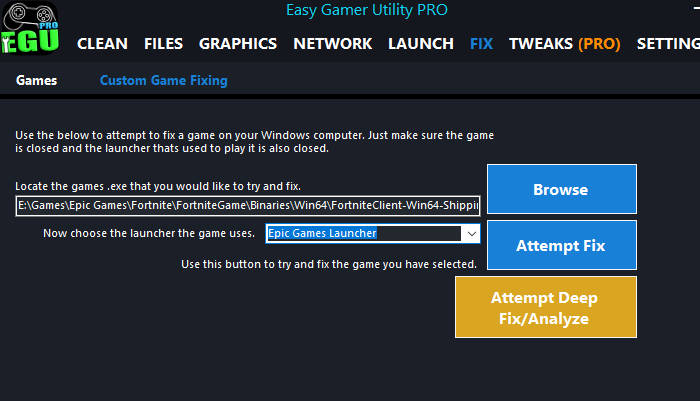
9. Use Easy Gamer Utility
Easy Gamer Utility is a free tool designed to fix common gaming problems. It can:
- Clean game and GPU cache
- Reset graphics settings
- Fix common Windows issues
Download and install from our website, then run the tool and apply relevant fixes to optimize your system for gaming. You can also select the games .exe and have Easy Gamer Utility attempt to fix the game for you!
10. Check Community Forums & Updates
If nothing works, you’re likely not alone:
- Check the Steam Discussions for inZOI
- Visit Reddit communities or the developer’s social pages
- Look for game patches or hotfixes released by the developers
✅ Conclusion
Crashing issues in games like inZOI can be incredibly frustrating, especially when you’re eager to dive into its rich, detailed world. Fortunately, most of these problems can be resolved with a few key tweaks—whether that’s updating drivers, verifying game files, managing system memory, or using tools like Easy Gamer Utility to optimize your setup.
By following this guide step-by-step, you’ve increased your chances of stabilizing the game and enjoying a smoother, crash-free experience. If problems persist, keep an eye on updates from the developers or visit community forums for new fixes as they become available.
Now that your system is in check, it’s time to get back to crafting your story in inZOI—no more interruptions.