

Running into issues with your inZOI save files not working? You’re definitely not alone. It’s frustrating to put time into your sims and their world, only to find that your progress isn’t being saved. But don’t worry—there are a couple of things you can check that might solve the problem right away.
What’s Causing the Save Issue?
For some players, inZOI isn’t able to save properly due to a couple of specific reasons. The most common causes are listed below and how to fix both:
✅ Fix #1: Check Your Windows Username
If your Windows username includes any special characters (like @, #, $, &, etc.), inZOI might have trouble saving your game. This is because the game may not handle special characters well when creating file paths.
How to fix it:
You’ll need to create a new Windows user profile with a simple name—letters and numbers only. Something like John or Gamer123 works perfectly.
Once you’re logged into the new profile, launch inZOI and try saving your game again. This fix has worked for a lot of players.
✅ Fix #2: Disable OneDrive Sync
Another issue is OneDrive getting in the way of where inZOI tries to save files. If your Documents folder is synced with OneDrive, the game might struggle to access the save location properly.
How to fix it:
- Right-click the OneDrive icon in your taskbar.
- Click Settings.
- Under the Sync and backup tab, click Manage backup.
- Turn off backup for Documents.
- Restart your PC and launch the game again.
Be sure to back up anything important in your Documents folder before making changes, just in case. Also, OneDrive will no longer be backing up your documents! If it does not help then you can renable the option.
✅ Fix #3: Easy Gamer Utility
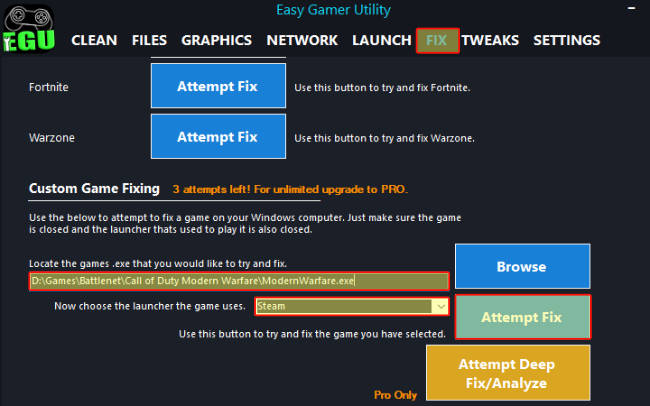
Try using our program Easy Gamer Utility which is free to download and see if it helps with your game not saving.
Go onto the Fix tab then find your games .exe and click Attempt Fix button
Download Easy Gamer Utility here
Final Thoughts
inZOI is still pretty new, and little issues like this are bound to pop up as things get polished. If your game isn’t saving, try these two fixes—checking your username and disabling OneDrive—and you should be back on track in no time.
Hopefully, future updates will make this smoother, but for now, these workarounds should do the trick.