

If you’ve just fired up Mario Kart World on your shiny new Nintendo Switch 2 and noticed your kart constantly pulling or drifting to one side, even when you’re not touching the controls, you’re not alone. This is a common issue that’s left many players wondering if their Joy-Con is faulty or if their console is broken.
But before you panic or contact support because you are struggling to contol your Mario Kart character, there’s a simple fix that solves this exact problem.
Why Is My Kart Steering on Its Own in Mario Kart World?
You might have searched things like:
- “Mario Kart World kart drifting to the left”
- “Why is my kart turning by itself Switch 2”
- “How to fix auto steering in Mario Kart World”
The good news is, this strange kart behavior is not usually a hardware issue. It’s most likely caused by Smart Steering and Tilt Controls — two assist features that are automatically enabled when you first play Mario Kart World, especially in handheld mode or when using a single Joy-Con.
These settings are designed to help new or younger players, but they can interfere with normal gameplay and cause your kart to steer or drift unexpectedly.
What Is Smart Steering?
Smart Steering is a driving assist feature designed to keep your kart on the track and away from hazards. It works by subtly steering your kart away from edges, walls, or off-road areas.
While this can help beginners stay in the race, it also limits your ability to drift properly, take shortcuts, or fully control your kart. With Smart Steering on, your kart may feel like it’s “pulling” to the side, or like it’s resisting tight turns — especially around corners or when drifting.
What Are Tilt Controls?
Tilt Controls allow you to steer your kart by physically tilting your Joy-Con or controller — similar to using a motion steering wheel. The problem? If your Joy-Con is not perfectly level, it can cause unintentional steering, making your kart veer or drift even when your thumb is off the stick.
You might be accidentally tilting your controller slightly without realizing it, causing the kart to constantly drift left or right — especially in menus or on straight tracks.
How to Turn Off Smart Steering AND Tilt Controls
To completely stop your kart from steering or drifting on its own in Mario Kart World, follow these steps:
From the Main Menu join Free Roam by pressing the + on your Joy Con
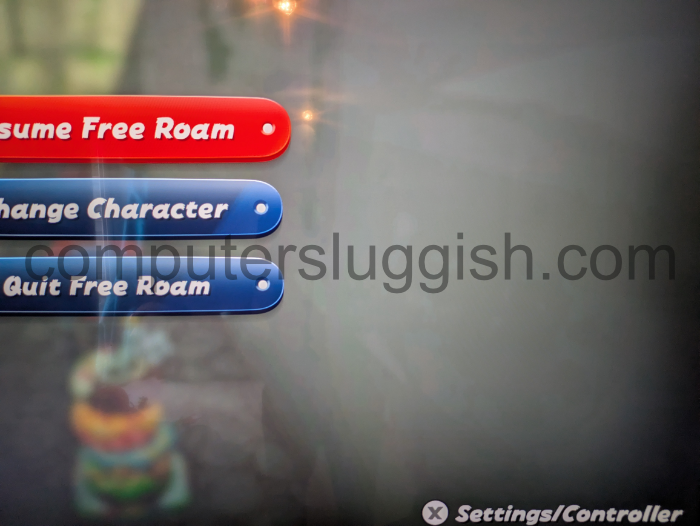
Then Press the + to open the Menu
Then Press X to open up Settings/Controller > Toggle Off the following options by using the joystick
Smart Steering to Off

Tilt Controls to Off

Once they’re both off you are good to go!
Problem Solved – No More Unwanted Drifting!
After turning off Smart Steering and Tilt Controls, your kart should stop pulling to the side and respond exactly to your inputs. You’ll now be able to drift properly, hit shortcuts, and pull off tighter turns – making your gameplay smoother and more competitive.
Related Searches We’re Solving For
To help anyone else searching online for this common problem, here are some popular Google searches we’re answering with this fix:
- “Mario Kart World Switch 2 drifting problem”
- “How to fix Smart Steering in Mario Kart World”
- “Nintendo Switch 2 kart driving itself”
- “Mario Kart World auto steering off”
- “Joy-Con not broken but kart still drifting”
If you’ve been dealing with this issue, hopefully now you can enjoy Mario Kart World without frustration.
Final Thoughts
Smart Steering and Tilt Controls are a great feature for new players or young children, but if you’re a more experienced racer — or you just want to learn the game properly — it’s much better to turn it off. You’ll get full control, unlock the ability to take tighter racing lines, and make better use of drifting mechanics.
So if your kart in Mario Kart World on Nintendo Switch 2 keeps drifting to the side, turn thess options off – and get back to racing like a pro.