
Resident Evil Requiem Low FPS Fix
If Resident Evil Requiem is running with low FPS, stuttering, or inconsistent performance on your PC, you’re definitely not alone. Many players find the game runs far worse than expected even on systems that should easily handle it.
Low FPS on PC is rarely caused by just one thing. In most cases, performance problems come from a combination of Windows background activity, graphics settings, driver configuration, and system optimisation issues. The good news is that you can usually improve performance significantly without upgrading your hardware.
This guide covers the most effective ways to fix low FPS in Resident Evil Requiem on both Windows 10 and Windows 11.
Why Resident Evil Requiem Has Low FPS on PC
Modern games place heavy demand on both the GPU and CPU at the same time. When Windows is running unnecessary services or background apps, your system resources become split between the game and everything else running in the background.
Common causes of low FPS include:
- Background applications using CPU or RAM
- Power settings limiting performance
- Incorrect graphics settings
- Shader compilation stutter
- Outdated GPU drivers
- Windows gaming services interfering with performance
Even high-end PCs can experience frame drops if Windows isn’t properly optimised for gaming.
Restart Your PC Before Playing
It sounds simple, but restarting your PC clears memory usage, background tasks, and temporary system conflicts.
If you’ve had your PC running all day with browsers, updates, or software open, performance will almost always be worse in games.
Restart first, then launch the game and test performance again.
Update Graphics Drivers
Graphics driver updates frequently include performance optimisations for newer games.
NVIDIA users should install the latest Game Ready Driver through GeForce Experience.
AMD users should update using AMD Adrenalin Software.
After updating, restart your PC before launching the game again. Many FPS problems are solved at this stage alone.
Optimise Windows for Gaming (Biggest FPS Improvement)
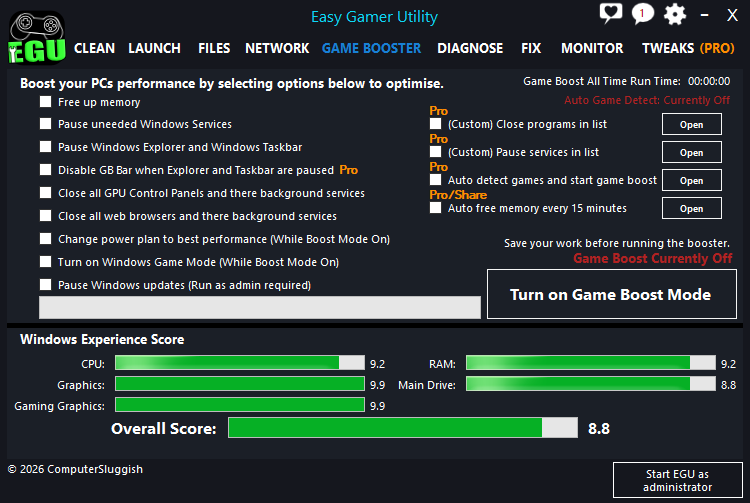
One of the main reasons players experience low FPS is that Windows continues running dozens of background services while gaming.
Things like update services, background sync tools, and startup applications quietly consume CPU and RAM, reducing available performance for the game.
Instead of manually disabling services, many players use Easy Gamer Utility to automatically prepare their system for gaming. It safely stops unnecessary background processes, frees RAM, and prioritises gaming performance without permanently changing Windows settings.
You can download Easy Gamer Utility here
Launching Resident Evil Requiem after activating Game Mode often results in smoother gameplay, fewer frame drops, and more consistent FPS, especially on mid-range systems.
Adjust Graphics Settings for Better FPS
Some settings impact performance far more than others. Lowering the right options can dramatically improve FPS without ruining visuals.
Start with these changes:
- Shadow Quality → Medium
- Ray Tracing → Off
- Volumetric Lighting → Medium
- Motion Blur → Off
- Screen Space Reflections → Medium
Texture quality mainly affects VRAM usage, while shadows and lighting heavily affect GPU load.
Lower settings gradually and test performance after each change.
Set Windows Power Mode to High Performance
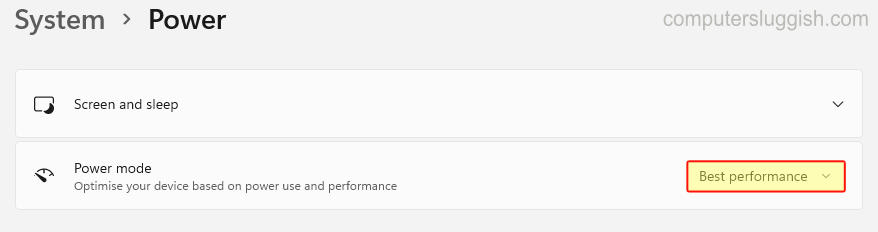
Windows power plans can silently limit performance.
On Windows 10 or Windows 11:
- Open Settings
- Go to Power & Battery
- Set Power Mode to Best Performance
This allows your CPU and GPU to run at full capability during gameplay.
Disable Overlays
Overlays can reduce FPS and cause micro-stutter.
Disable:
- Steam Overlay
- Discord Overlay
- Xbox Game Bar
- NVIDIA Overlay
These programs hook into the game and consume system resources continuously while playing.
Close Background Programs Automatically
Many users close visible programs but forget about hidden startup apps running in the background.
Easy Gamer Utility helps here again by automatically shutting down non-essential processes before gaming begins. This prevents sudden CPU spikes that often cause FPS drops during intense scenes or combat sequences.
If your FPS feels inconsistent rather than constantly low, background processes are usually the cause.
Enable Game Mode in Windows
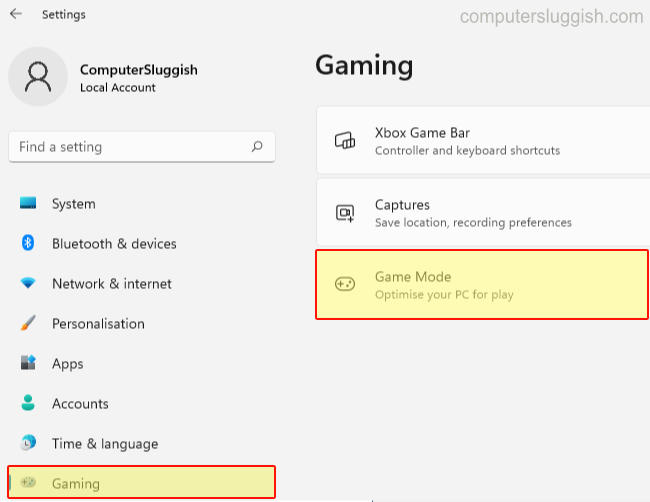
Windows Game Mode helps prioritise gaming performance.
Go to:
Settings → Gaming → Game Mode → Turn On
While not a complete solution alone, it works well alongside system optimisation tools.
Verify Game Files

Corrupted files can cause performance issues and stuttering.
In Steam:
Right-click game → Properties → Installed Files → Verify integrity of game files.
This ensures all performance-related assets load correctly.
Reduce Startup Apps
Too many startup programs slow Windows before the game even launches.
Open Task Manager → Startup Apps and disable anything non-essential.
Alternatively, running Easy Gamer Utility before gaming achieves the same result instantly without permanently disabling software you still want later.
Why System Optimisation Improves FPS More Than Hardware Upgrades
Many players assume low FPS means their PC is outdated, but often the issue is Windows resource management rather than hardware limitations.
When background tasks compete for CPU time, frame pacing becomes unstable, causing:
- FPS drops
- Stutter
- Input delay
- Inconsistent performance
Preparing your system properly before launching games allows your hardware to focus entirely on rendering the game.
That’s why many PC gamers now use lightweight optimisation tools like Easy Gamer Utility as part of their normal gaming routine.
Final Thoughts
If Resident Evil Requiem has low FPS on your PC, the problem is usually fixable with the right adjustments.
The biggest improvements typically come from:
- Updating graphics drivers
- Optimising Windows background activity
- Adjusting graphics settings correctly
- Disabling overlays
- Running the game on a clean system environment
For the fastest improvement without manually changing dozens of settings, preparing your PC using Easy Gamer Utility before launching the game can make a noticeable difference in stability and frame rate consistency.
You can download Easy Gamer Utility here