

If Madden NFL 26 crashes at the EA AntiCheat splash screen and never loads into the game, you’re not alone. This crash typically occurs before the main menu appears and can be caused by a range of issues, including corrupted anti-cheat files, admin permission problems, or software conflicts.
This guide walks you through every known fix for this specific issue on Windows.
Why Madden 26 Crashes at the AntiCheat Screen
This problem usually stems from one of the following:
- Corrupted or missing EA AntiCheat files
- Lack of administrator permissions
- Conflicts with overlays or background apps
- Incomplete game installation or broken updates
- Interference from antivirus or security software
- Running third-party software EA AntiCheat flags (even mistakenly)
Step-by-Step Fixes for Madden 26 AntiCheat Crash
1. Repair EA AntiCheat
Corrupted anti-cheat installation is the most common cause.
Steps:
- Go to your Madden 26 installation directory
- Open the folder named:
__Installer\EAAntiCheatorC:\Program Files\EA\AC(location may vary) - Run:
EAAntiCheatInstaller.exe - From the dropdown, select Madden NFL 26
- Click Uninstall first
- Then run the tool again and click Install
After reinstalling, try launching Madden again.
2. Run Madden and EA App as Administrator
AntiCheat needs elevated permissions to function properly.
Steps:
- Right-click on:
EA Desktop AppMadden26.exeEAAntiCheatInstaller.exe
- Select Properties > Compatibility
- Check “Run this program as an administrator”
- Click Apply, then launch the game again via the EA App
3. Verify Game Files
Missing or broken files can cause the game to fail when initializing AntiCheat.
EA App:
- Go to Library > Madden 26 > Three Dots > Repair
Steam:
- Right-click Madden 26 > Properties > Installed Files > Verify Integrity
Let the process complete and relaunch the game.
4. Temporarily Disable Antivirus or Add Exceptions
Security software can interfere with AntiCheat loading.
What to do:
- Temporarily disable your antivirus or Windows Defender
- Or add exceptions for:
Madden26.exeEAAntiCheatInstaller.exe- EA App folder
- Madden 26 game directory
After doing so, relaunch the game. If it works, re-enable your antivirus but keep the exceptions.
5. Close Conflicting Background Programs
Overlays and hardware monitoring tools are known to cause issues with AntiCheat.
Close or disable the following:
- Discord (disable overlay)
- MSI Afterburner / RivaTuner
- GeForce Experience (overlay)
- AMD Radeon Overlay
- Logitech Gaming Software
- OBS or streaming software
- VPNs and network tools
Use Task Manager (Ctrl + Shift + Esc) to end these tasks before launching Madden.
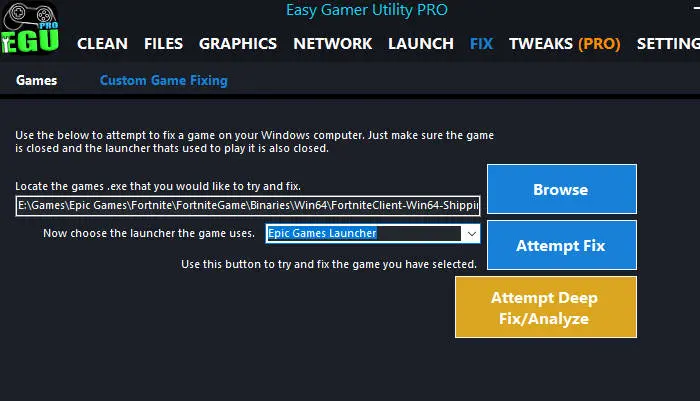
6. Use Easy Gamer Utility (Optional – Recommended for Fast Fix)
Easy Gamer Utility can automatically detect and fix AntiCheat launch issues.
What it does:
- Resets AntiCheat registry entries
- Clears temp and cached files that block initialization
- Detects missing permissions or corrupted services
- Disables background conflicts temporarily for a clean launch
How to use:
- Download Easy Gamer Utility here
- Open the app and select Madden 26 in the Fixing tab
- Now the game will launch
7. Ensure Secure Boot Is Enabled in BIOS (Rare Cases)
EA AntiCheat may fail on systems without Secure Boot enabled, especially after hardware changes.
To check:
- Press Windows + R, type
msinfo32, and press Enter - Look for Secure Boot State
- If it says Off, reboot into BIOS and enable Secure Boot
Note: Make sure you’re using UEFI, not Legacy BIOS. Only do this if you’re comfortable adjusting BIOS settings.
8. Reinstall EA AntiCheat Manually (Advanced)
If all else fails, manually reinstalling AntiCheat may help.
Steps:
- Navigate to
C:\Program Files\EA\AC - Delete the EA AntiCheat folder
- Reinstall using the
EAAntiCheatInstaller.exefrom the game directory - Launch Madden 26 again
Final Troubleshooting Tips
- Avoid launching Madden 26 directly from the desktop shortcut. Always use the EA App or Steam.
- Don’t alt-tab or click other windows during the AntiCheat splash screen
- Keep your Windows installation and drivers fully updated
- If you’re dual-booting or using custom Windows versions, consider switching to a clean Windows environment
Common Errors This Guide Fixes
- Madden 26 crashing at AntiCheat screen
- Game closes after AntiCheat splash
- EA AntiCheat failed to initialize
- No error, just exits during launch
- AntiCheat stuck or restarting loop
- Madden 26 not launching after patch
Still Not Working?
If all else fails, contact EA support:
- https://help.ea.com
- Select Madden 26 > PC > Technical Support > Game won’t launch